Set up email notifications for potential ransomware threats
When email notifications are configured centrally in a Portal instance instead of separately for each computer, Admin users can receive emails when potential ransomware threats are detected on Windows servers in Image or Local System backup jobs, and on Windows VMs in vSphere backup jobs. See Add a Windows Local System backup job, Add a Windows Image backup job, Add a vSphere backup job and Manage potential ransomware threats.
Admin users in a parent site can receive emails when potential threats are detected in the parent site and in its child sites. Admin users in a child site can receive emails when potential threats are detected in the child site.
When email notifications are configured centrally in a Portal instance, additional notification email addresses can be specified for each child site.
Note: Email notifications selected in Admin users' profile settings are only sent in English. Email notifications for child site email addresses are supported in multiple languages.
To set up email notifications for potential ransomware threats:
-
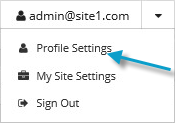
When signed in as an Admin user, click your email address at the top right of the Portal page.
The user menu appears.
-
Click Profile Settings.
-
In the Email Notification Settings list, select the Potential Threats option.
-
Click Update notifications.