Add a Windows Local System backup job
After a Windows computer is added in Portal, you can create a backup job for the computer. The backup job specifies which drives, folders and files to back up, and the vault for saving the data.
Note: Beginning with Portal 8.89 and Windows Agent 8.90a, backups can be configured automatically on Windows servers based on job templates. When agent auto-configuration is set up in a Portal instance, you do not have to manually create a backup job and schedule for each Windows server. For more information, see
In a Windows backup job, you can select:
-
Specific folders and files to back up
-
The Bare Metal Restore (BMR) option, to back up volumes that are needed to boot up the system after a system recovery. In a disaster recovery situation, you can use the System Restore application to restore systems from BMR backups.
Note: You can also create BMR backup jobs using the Image Plug-in. When you run an Image Plug-in BMR job, the Plug-in backs up required volumes as images, instead of enumerating and backing up individual files and folders on the volumes.
Note: The Agent can back up encrypted volumes (e.g., encrypted by BitLocker) if they are unlocked at the time of backup. When unlocked volumes are restored, they are not encrypted and must be re-encrypted, if desired.
-
The Entire Server option, available with Windows Agent 8.72 or later and Portal 8.87 or later. When this option is selected, the job backs up all non-removable volumes on the system, including volumes that are added after the job is created.
Note: To back up an entire server, create an Image job instead of a Local System job. The Image Plug-in sequentially backs up all blocks on a volume instead of backing up specific files and folders, which requires less processing than a traditional Windows backup job and can significantly reduce the backup time. See Add a Windows Image backup job.
When the Entire Server option is selected in a Local System job, you do not need to select files and folders to include. However, you can exclude specific files and folders from the job.Beginning in Portal 8.89, the Bare Metal Restore option is automatically selected when you select the Entire Server option. This ensures that you can restore a protected server using the System Restore application, if required.
-
The System State option, to back up files required for recovering the state of the operating system. System state backups typically include registry and boot files, the COM+ Class Registration Database, Windows system files and performance counters.
IMPORTANT: Instead of system state backups, we recommend using Image backups with the Bare Metal Restore option on platforms where the Image Plug-in is supported.
Note: Do not include antivirus product installation directories or resource folders in backup jobs.
Note: Some files are filtered out automatically from a backup job. For example, files specified by the FilesNotToBackup and FilesNotToSnapshot registry keys might not be backed up, and the job folder is not backed up.
Beginning with Windows Agent 9.00 and Portal 8.90, you can enable ransomware threat detection when you add a Local System backup job. When this option is enabled, the agent checks for potential ransomware threats when running the backup job. If the Windows agent detects a potential threat, the resulting backup is identified as a potential threat throughout Portal so you can investigate and resolve the threat. See Manage potential ransomware threats.
Note: The agent does not check for potential ransomware threats in a seed backup or the first backup when threat detection is enabled in a job.
To back up the data, you can run the backup job manually and schedule the backup job to run. See Run and schedule backups, synchronizations and custom commands.
To add a Windows Local System backup job:
-
On the navigation bar, click Computers.
The Computers page shows registered computers.
-
Find a Windows computer, and expand its view by clicking the computer row.
If a backup job has not been created for the computer, the system can attempt to create a backup job automatically. See Add the first backup job for a Windows computer.
-
Click the Jobs tab.
If a valid vault connection is not available for the computer, you cannot access the Jobs tab. See Add vault settings.
-
In the Select Job Task menu, click Create Local System Job.
-
In the Create New Job dialog box, specify the following information:
- In the Name box, type a name for the backup job.
- In the Description box, optionally type a description for the backup job.
- In the Destination list, select the vault where you want to save the backup data.
A vault only appears in the list if it assigned to the user, or if the user added it on the computer’s Vault Settings tab.
- For new backup jobs, the encryption method is AES 256 bit. Existing jobs can have other encryption methods. See Encryption settings.
-
In the Password and Confirm Password boxes, enter an encryption password. You can also enter a password hint in the Password Hint box.
-
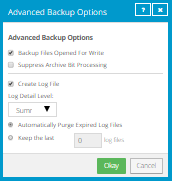
To change log file settings or other backup options, click Advanced Backup Options. In the Advanced Backup Options dialog box, specify options and then click Okay. For more information, see Log file options and Advanced backup options.
-
In the Select Files and Folders for Backup box, do one or more of the following until the Backup Set box shows the drives, folders and files that you want to include and exclude in the backup job:
-
To back up all volumes on the system, including non-removable volumes that are added after the backup job is created, select the Entire Server option.
IMPORTANT: To back up an entire server, create an Image job instead of a Local System job. The Image Plug-in sequentially backs up all blocks on a volume instead of backing up specific files and folders, which requires less processing than a traditional Windows backup job and can significantly reduce the backup time. See Add a Windows Image backup job.
Note: The Entire Server option is only available with Windows Agent 8.72 or later and Portal 8.87 or later.
Note: Beginning in Portal 8.89, the Bare Metal Restore option is automatically selected when you select the Entire Server option.
-
To back up system files so that you can restore the system to its state at the time of the backup, select System State, and then click Include.
Note: Instead of system state backups, we recommend using Image backups with the Bare Metal Restore option on platforms where the Image Plug-in is supported.
- To back up volumes that are needed to boot up the system after a system recovery, select Bare Metal Restore, and then click Include.
Bare Metal Restore (BMR) backups can be restored to new hardware using the System Restore application.
-
To add one or more folders or files to the backup job, select the check box for each folder or file, and then click Include. The included folders or files appear in the Backup Set box. If you include a folder, the backup job includes all of the folder’s subdirectories and files by default. If you do not want to back up all of the subdirectories and files, you can add filters. See Filter subdirectories and files in backup jobs.
Note: When the Entire Server option is selected in a Local System job, you do not need to select files and folders to include. All files will be backed up unless you exclude specific files and folders from the job.
-
To exclude one or more folders or files from the backup job, select the check box for each folder or file, and then click Exclude. The excluded folders or files appear in the Backup Set box. If you exclude a folder, all of the folder’s subdirectories and files are excluded from the backup job by default. If you do not want to exclude all of the subdirectories and files, you can add filters. See Filter subdirectories and files in backup jobs.
-
To remove an inclusion or exclusion record from the Backup Set box, click the Delete button beside the folder or file record.

-
-
Do one of the following
-
To check for potential ransomware threats while running the job, select the Enable Threat Detection check box.
-
To disable ransomware threat detection, clear the Enable Threat Detection check box.
IMPORTANT: If you disable threat detection for a job where it was enabled, any potential threat warnings for backups in the job will be cleared. Only disable threat detection for a job once all potential threats have been addressed. See Manage potential ransomware threats.
-
-
Click Create Job.
The job is created, and the View/Add Schedule dialog box appears. Now you can create a schedule for running the backup. Click Cancel if you do not want to create a schedule at this time.
For information about how to run and schedule the backup job, see Run and schedule backups, synchronizations and custom commands.