Add a vSphere backup job
After a VMware vSphere environment is added in Portal, you can create a backup job that specifies which virtual machines (VMs) to back up, and where to save the backup data.
You must add vault settings and vSphere environment information before you can add a backup job. See Configure a vSphere Recovery Agent.
You can also enable or disable the following options in a vSphere backup job:
-
Guest file system quiescing. Beginning with VRA 9.20 and Portal 9.30, you can specify whether to quiesce the file system of each VM before backing it up. Quiescing the file system on a VM brings the data into a consistent state that is suitable for backups.
Trying to quiesce a guest file system that cannot be quiesced can take significant time and resources and cause the VM to become unresponsive. When backing up VMs that cannot be quiesced, turning off guest file system quiescing can save backup time and system resources.
-
Application-consistent backups. Beginning in version 8.82, while protecting the entire file system of a Windows VM, the VRA can create application-consistent backups of Microsoft SQL Server, Exchange, SharePoint and Active Directory on the VM. Application-consistent backups minimize the amount of work needed to restore applications from backups. You can also specify whether application transaction logs should be truncated during application-consistent backups. For more information, see Application-consistent backups on vSphere VMs.
If you do not enable guest file system quiescing or application-consistency in a backup job, the backups are crash-consistent. A crash-consistent backup includes data on disk at the time of the backup and does not include data that is still in memory.
Note: Beginning with Portal 9.30 and VRA 9.20, the application-consistent option can only be enabled in a backup job if the guest file system quiescing option is enabled.
-
Ransomware threat detection. Beginning in version 9.10, the VRA can check for potential ransomware threats on Windows VMs when running the backup job. If the VRA detects a potential threat on a VM, the VM backup is identified as a potential threat throughout Portal so you can investigate and resolve the threat. See Manage potential ransomware threats.
Note: The VRA does not check for potential ransomware threats in a seed backup or the first backup when threat detection is enabled in a job.
-
Backup verification. Beginning in version 9.00, the VRA can back up VMs in the job and then check whether each Windows VM can be restored from the backup. See Backup verification for vSphere VMs. Backup verification settings must also be entered for the VRA. See Enter backup verification settings for a vSphere Recovery Agent.
Note: Backup verification does not run for vSphere backups that are started by intra-daily schedules.
For requirements for these vSphere backup options, see Requirements for specific vSphere Recovery Agent features.
To back up the data, you can run the backup job manually or schedule the backup job to run. See Run and schedule backups, synchronizations and custom commands.
To add a vSphere backup job:
-
On the navigation bar, click Computers.
The Computers page shows registered computers and environments.
-
Click the vSphere environment row.

If a message states that the Agent needs to be configured, you must add vault settings and vSphere environment information before adding a backup job. See Configure a vSphere Recovery Agent.
If the vSphere environment does not have vault settings, the Configure Manually box appears. To add vault settings manually, click Configure Manually, and add a vault on the Vault Settings tab. See Add vault settings.
If the vSphere environment does not have vault settings and at least one vault profile is available, the Configure Automatically box appears. To add vault settings, choose a vault from the Choose a vault list. If the Assign the computer to a site list appears, you can also choose a child site for the computer. Click Configure Automatically.

-
Click the Jobs tab.
-
In the Select Job Task menu, click Create VMware vSphere Job.
If the Connect to vSphere dialog box appears, specify the following information in the dialog box:
-
In the User Name box, type the Windows domain account user name used to authenticate the VRA with the vCenter or ESXi host.
-
In the Password box, type the password for the specified user.
-
In the Domain box, type the domain of the specified user account. The domain is optional if you specified the domain in the User Name box (e.g., domain\username).
Note: vSphere environment settings entered in this dialog box are populated on the Agent’s vSphere Settings tab.
-
-
In the Create New Job dialog box, specify the following information:
-
In the Name box, type a name for the backup job.
-
In the Description box, optionally type a description for the backup job.
-
In the Destination list, select the vault where you want to save the backup data.
A vault only appears in the list if it is assigned to the user, or if the user added it on the computer’s Vault Settings tab.
-
In the Log File Options list, select the level of detail for job logging. For more information, see Log file options.
-
For new backup jobs, the encryption method is AES 256 bit. Existing jobs can have other encryption methods. See Encryption settings.
-
In the Password and Confirm Password boxes, enter an encryption password. You can also enter a password hint in the Password Hint box.
-
-
In the Include in Backup box, do one or more of the following until the Backup Set box shows the VMs that you want to include and exclude in the backup job:
-
To add specific VMs to the backup job, select the check box for each VM, and then click Include.
-
To exclude specific VMs from the backup job, select the check box for each VM, and then click Exclude.
-
To add VMs to the backup job by name, select the Virtual Machines check box, and then click Include. In the Filter field, enter names of VMs to include. Separate multiple names with commas, and use asterisks (*) as wildcard characters. For example, to include VMs in a backup if their names end with “x64” or start with “SQL”, enter the following filter: *x64, SQL*
Note: Asterisks (*) are the only supported wildcards in filter fields.
-
To exclude VMs from the backup job by name, select the Virtual Machines check box, and then click Exclude. In the Filter field, enter names of VMs to exclude. Separate multiple names with commas, and use asterisks (*) as wildcard characters. For example, to exclude VMs from a backup if their names start with “test” or end with “x32”, enter the following filter: test*, *x32
-
To remove an inclusion or exclusion record from the Backup Set box, click the Delete button beside the record.

-
-
Specify whether you want the VRA to quiesce the file system of each VM before backing it up by doing one of the following:
-
To quiesce the guest file system before backing up a VM, select the Quiesce guest file system check box.
-
To back up each VM without trying to quiesce the guest file system, clear the Quiesce guest file system check box.
-
-
To perform application-consistent backups of SQL Server, Exchange, SharePoint, and Active Directory on Windows VMs in the backup job, while protecting the entire file system of each VM, do the following:
-
Select the Enable Application Consistent Backups check box.
Note: You can only select this check box if the Quiesce guest file system check box is selected.
-
Do one of the following:
-
To preserve application transaction logs on VMs in the job, clear the Truncate Database Transaction Logs check box.
-
To truncate application transaction logs on VMs in the job, select the Truncate Database Transaction Logs check box and enter credentials for connecting to VMs in the job.
To enter credentials for multiple VMs in the job, enter a username and password in the Guest VM Credentials area.
To enter credentials for a specific VM in the job, click the arrow at the right side of the VM name in the Backup Set area, and enter a username and password in the Guest VM Credentials area for the VM.
You can enter a username as username or domain\username. The specified user or users must have admin access to VMs in the backup job, but do not need admin rights for applications on the VMs.
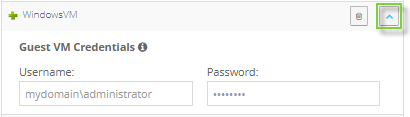
Note: If you enter credentials for a specific VM in the job, the VRA will not attempt to connect to the VM using the credentials specified for multiple VMs in the job.
Note: If you also back up databases with another tool (e.g., native SQL Server backup), use only one tool for truncating logs.
-
To perform an application-consistent backup of a domain controller with Active Directory, enable the Truncate Database Transaction logs option, and enter domain admin credentials for the VM using the domain\username format.
Note: There are no logs to truncate when performing application-consistent backups of domain controllers with Active Directory. However, credentials with domain admin privileges are required for application-consistent backups of domain controllers. If the log truncation option is enabled, you can enter the required credentials.
-
-
-
Specify whether you want the VRA to check for potential ransomware threats by doing one of the following:
-
To back up VMs without checking for potential ransomware threats, clear the Enable Threat Detection check box.
IMPORTANT: If you disable threat detection for a job where it was enabled, any potential threat flags for backups in the job will be cleared. Only disable threat detection for a job once all potential threats have been addressed. See Manage potential ransomware threats.
-
To back up VMs and check for potential ransomware threats on the VMs, select the Enable Threat Detection check box. If you did not enter credentials for truncating application transaction logs in Step 7, enter credentials for connecting to VMs in the job.
To enter credentials for multiple VMs in the job, enter a username and password in the Guest VM Credentials area.
To enter credentials for a specific VM in the job, click the arrow at the right side of the VM name in the Backup Set area, and enter a username and password in the Guest VM Credentials area for the VM.
You can enter a username as username or domain\username. The specified user or users must have admin access to VMs in the backup job.
Note: The same credentials are used for truncating transaction logs in application-consistent backups and checking for potential ransomware threats.
Note: If you enter credentials for a specific VM in the job, the Agent will not attempt to connect to the VM using the credentials specified for multiple VMs in the job.
-
-
Specify whether you want the VRA to check whether VMs can be restored by doing one of the following:
-
To back up VMs without checking whether they can be restored, clear the Verify this backup upon completion check box.
-
To back up VMs and check whether Windows VMs can be restored from the backup, select the Verify this backup upon completion check box.
Note: You can only enable backup verification if the selected vault supports this feature and backup verification settings are entered for the VRA. See vSphere Rapid VM Restore and backup verification requirements and Enter backup verification settings for a vSphere Recovery Agent.
-
-
Click Create Job.
The job is created, and the View/Add Schedule dialog box appears. To create a schedule for running the backup, see Run and schedule backups, synchronizations and custom commands. If you do not want to create a schedule at this time, click Cancel.