Add a Windows Image backup job
After a Windows computer with the Image Plug-in is added and configured in Portal, you can create an Image backup job. In an Image backup job, the Image Plug-in sequentially backs up all blocks on a volume instead of backing up specific files and folders. Because this process can require less processing than a traditional Windows backup job, the backup time can be significantly reduced. We recommend Image backup jobs over Local System backup jobs when backing up larger number of files on slow disks.
In an Image backup job, you can select the following options:
-
Specific volumes to back up.
Note: Encrypted volumes (e.g., encrypted by BitLocker) can be backed up if they are unlocked at the time of backup. When unlocked volumes are restored, they are not encrypted and must be re-encrypted, if desired.
Note: The Image Plug-in is not supported with volumes created from Microsoft Storage Spaces Direct (S2D) storage pools.
Note: The Image Plug-in is not supported on servers where Windows Offloaded Data Transfer (ODX) is enabled.
-
Bare Metal Restore (BMR). This option backs up volumes that are needed to boot up the system after a system recovery. A BMR backup includes the volume where the operating system is installed, and the EFI system partition (ESP) on a UEFI-based system or the volume with the master boot record (MBR) on a BIOS-based system. In a disaster recovery situation, you can use the System Restore application to restore systems from BMR backups.
Note: BMR backup jobs can also be created using the Windows Agent without the Image Plug-in. Regardless of how a BMR backup was created, you can restore the backup using the System Restore application.
-
Volumes with SQL Server database files. This option creates application-consistent SQL Server database backups, so that separate SQL Server Plug-in jobs are not required. Image Plug-in version 7.5 or later is required for this functionality.
-
The Entire Server option, available with Windows Agent 8.72 or later and Portal 8.87 or later. When this option is selected, the job backs up all non-removable volumes on the system, including volumes that are added after the job is created.
Beginning in Portal 8.89, the Bare Metal Restore option is automatically selected when you select the Entire Server option. This ensures that you can restore a protected server using the System Restore application, if required.
Beginning with Windows Agent 9.40 with the Image Plug-in and Portal 9.40, you can enable ransomware threat detection in an Image backup job. When this option is enabled, the agent checks for potential ransomware threats when running the Image backup job. If the agent detects a potential threat, the resulting backup is identified as a potential threat throughout Portal so you can investigate and resolve the threat. See Manage potential ransomware threats.
After creating an Image backup job, you can run the job manually, and schedule the backup job to run. See Run and schedule backups, synchronizations and custom commands.
In a seed backup, the Image Plug-in processes data for every block on a volume— even blocks that are empty. The amount of data reported in the backup log for a seed backup could be larger than the amount of data actually on the volumes.
Note: In some cases, a machine must be restarted before Changed Block Tracking (CBT) can identify data that has changed since a previous backup. For example, a machine must be restarted after the Image Plug-in is installed silently, a new volume is created, a new disk is added, or a disk is converted from basic to dynamic. Without CBT, the Agent reads all data on a volume before backing up the changed blocks.
Note: The Image Plug-in does not back up or restore the configuration of Windows Storage Spaces. In a disaster recovery, you can configure storage spaces manually, and then restore volumes to the storage spaces.
Note: Some files are filtered out automatically from a backup job. For example, files specified by the FilesNotToBackup and FilesNotToSnapshot registry keys might not be backed up, and the job folder is not backed up.
To add a Windows Image backup job:
-
On the navigation bar, click Computers.
The Computers page shows registered computers.
-
Find a Windows computer with the Image Plug-in, and click the computer row to expand its view.
If a backup job has not been created for the computer, the system can attempt to create a backup job automatically. See Add the first backup job for a Windows computer.
-
Click the Jobs tab.
If a valid vault connection is not available for the computer, you cannot access the Jobs tab. You must add a vault connection before you can create a job.
-
In the Select Job Task menu, click Create Image Job (recommended).
-
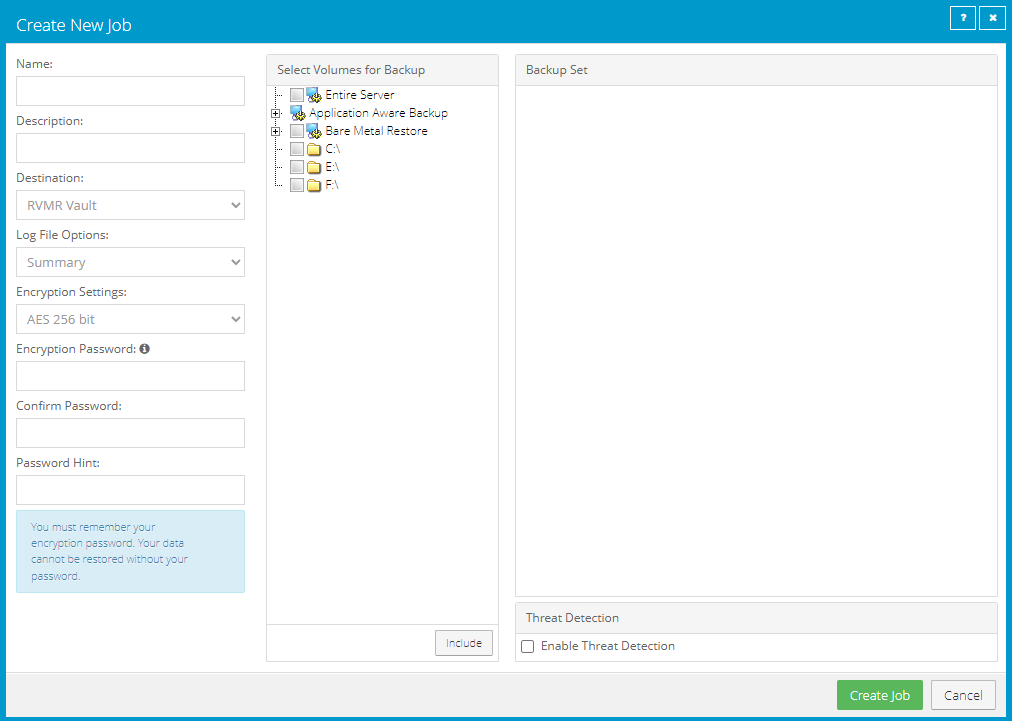
In the Create New Job dialog box, specify the following information:
-
In the Name box, type a name for the backup job.
-
In the Description box, optionally type a description for the backup job.
- In the Destination list, select the vault where you want to save the backup data.
A vault only appears in the list if it assigned to the user, or if the user added it on the computer’s Vault Settings tab.
- In the Log File Options list, select the level of detail for job logging.
Note: For Image Plug-in jobs, the selected logging level does not affect the content of the logs.
-
For new backup jobs, the encryption method is AES 256 bit. Existing jobs can have other encryption methods.
- In the Password and Confirm Password boxes, enter an encryption password. You can also enter a password hint in the Password Hint box.
-
-
In the Select Volumes for Backup box, do one of the following until the Backup Set box shows the volumes that you want to back up:
-
To back up all volumes on the system, including non-removable volumes that are added after the backup job is created, select the Entire Server option.
Note: The Entire Server option is only available with Windows Agent 8.72 or later and Portal 8.87 or later.
Note: Beginning in Portal 8.89, the Bare Metal Restore option is automatically selected when you select the Entire Server option.
-
To back up specific volumes, select the check box for each volume that you want to back up, and then click Include.
-
To back up volumes that are needed to boot up the system after a system recovery, select the Bare Metal Restore check box, and then click Include.
In addition to restoring systems from Bare Metal Restore (BMR) backups using the System Restore application, you can restore specific volumes, files, and folders from BMR backup jobs created using the Image Plug-in.
-
To back up volumes with SQL Server database files, and create application-consistent SQL Server database backups, click Application Aware Backup, select the SQL Volumes Protected check box, and then click Include. The SQL Server Credentials dialog box appears. Enter the following credentials for connecting to SQL Server and then click Okay.
-
To connect to SQL Server using a Windows administrator account, select Windows authentication.
-
To connect to SQL Server using a SQL Server administrator account, select SQL Server authentication.
-
In the User Name box, type the user name for connecting to the instance.
-
In the Password box, type the password of the specified user.
-
If you selected Windows authentication, in the Domain box, type the domain of the specified account.
If you selected Windows authentication, to ensure that the Image Plug-in can protect SQL transaction logs, User Account Control (UAC) must be disabled on the system or the user must have explicit write permission to the folder where the Agent is installed and inherited permission to its subfolders.
-
-
-
Do one of the following
-
To check for potential ransomware threats while running the job, select the Enable Threat Detection check box.
-
To disable ransomware threat detection, clear the Enable Threat Detection check box.
IMPORTANT: If you disable threat detection for a job where it was enabled, any potential threat warnings for backups in the job will be cleared. Only disable threat detection for a job once all potential threats have been addressed. See Manage potential ransomware threats.
-
-
Click Create Job.
The job is created, and the View/Add Schedule dialog box appears. You can now create a schedule for running the backup. Click Cancel if you do not want to create a schedule at this time.
For information about how to run and schedule the backup job, see Run and schedule backups, synchronizations and custom commands.