Add a vSphere environment
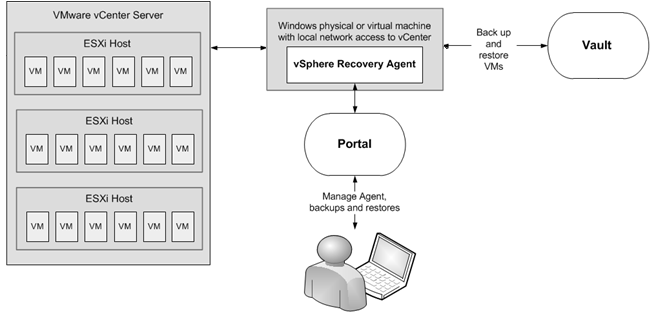
To protect a vSphere environment, you can install and configure a vSphere Recovery Agent (VRA). As shown in the following diagram, a single VRA can back up virtual machines (VMs) and templates across all hosts managed by a vCenter Server.
Beginning in version 8.87, a VRA can also back up virtual machines (VMs) and templates on an ESXi host that is not managed by vCenter Server.
Note: A separate VRA is required for each ESXi host that is not managed by vCenter Server.
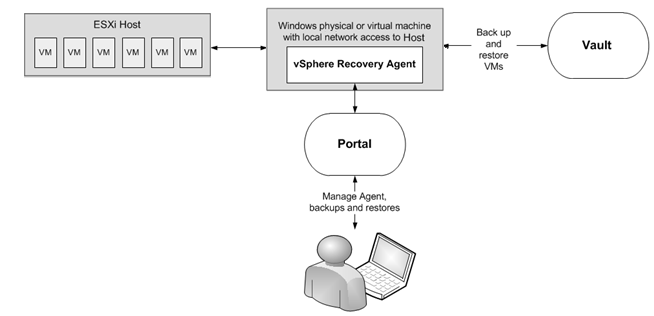
The VRA must be installed on a Windows physical or virtual machine with local network access to the vCenter or ESXi host that you want to protect. You can use Portal to configure and manage the VRA, back up VMs and templates to a secure vault, and restore data.
To minimize backup time and required vault space, the VRA only reads and backs up disk blocks that are being used on each VM. However, if a disk is encrypted using Bitlocker, the VRA must read all sectors of the disk. The VRA can back up VMs with encrypted disks, but the process might take longer than for non-encrypted disks.
To improve the performance of delta backups, the VRA can use Changed Block Tracking (CBT): a VMware feature that tracks changed disk sectors.
The VRA can back up and restore:
-
VMs with VMDKs that are as large as 10 TB.
- VMs that reside partly or completely on vSAN storage. The VRA can back up and restore VMs on vSAN storage as long as the minimum number of nodes required for the vSAN cluster are up.
- VMs in vSAN stretched clusters.
The following options are available in vSphere backup jobs:
-
Guest file system quiescing. Beginning with VRA 9.20 and Portal 9.30, you can specify whether to quiesce the file system of each VM before backing it up. For more information, see Add a vSphere backup job.
-
Application-consistent backups. Beginning in version 8.82, while protecting the entire file system of a Windows VM, the VRA can create application-consistent backups of Microsoft SQL Server, Exchange, SharePoint and Active Directory on the VM. Application-consistent backups minimize the amount of work needed to restore applications from backups. For more information, see Application-consistent backups on vSphere VMs.
-
Ransomware threat detection. Beginning in version 9.10, the VRA can check for potential ransomware threats on VMs when running the backup job. If the VRA detects a potential threat on a VM, the VM backup is identified as a potential threat throughout Portal so you can investigate and resolve the threat. See Manage potential ransomware threats.
-
Backup verification. Beginning in version 9.00, the VRA can check whether each Windows VM can be restored from the backup. You can view the verification results in the Backup Verification report in Portal 9.00 or later or in Verification logs in Portal 9.30 or later. For more information, see Backup verification for vSphere VMs and View the Backup Verification Report.
You can restore entire VMs using the VRA, and restore specific files, folders and database items from Windows VMs. See Restore vSphere data. Beginning with VRA 8.80, you can restore a VM within minutes using the Rapid VM Restore feature. In a vCenter, you can restore a VM using Rapid VM Restore and then migrate it to another datastore to restore it permanently. On an ESXi host that is not managed by vCenter Server, you can restore a VM temporarily using Rapid VM Restore. For more information, see Restore a vSphere VM within minutes using Rapid VM Restore.