Set up backups for a computer
When agent software is first installed on a computer, a notification appears on the Dashboard page in Portal. When your E3 hardware is set up and configured, you can set up backups for the computer.
Backups are set up using “backup jobs”. A backup job specifies which data to back up on a system, and is usually scheduled to run automatically.
To ensure that your data is backed up to your E3 hardware every night and then sent to the cloud, Portal can automatically create and schedule the following backup jobs:
-
For a 64-bit Windows computer, Portal can automatically create an Image Bare Metal Restore (BMR) backup job that backs up all volumes on the computer. This type of backup can be restored using recovery media. See Restore an entire Windows computer.
-
For a Linux computer, Portal can automatically create a backup job that backs up everything from the root.
Automatically-configured backups to E3 hardware are scheduled at 9 PM each day.
For a vSphere environment, you can associate the environment with an E3 and then manually create and schedule backup jobs that specify which VMs to back up.
For a Hyper-V environment, you can manually create and schedule backup jobs that specify which VMs to back up.
To set up backups for a computer:
-
In a web browser, go to the Portal website and sign in.
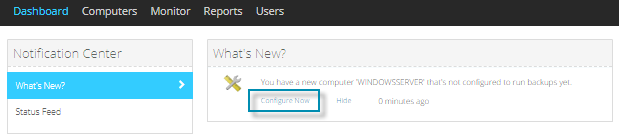
If agent software has been installed on a new computer, a notification appears in the “What’s New” area of the Dashboard.
Note: This notification appears with any Backup Appliance Setup Center messages on the Dashboard. See Check the status of your E3.
-
In a new computer notification, click Configure Now.
If a message states that the appliance setup is still in progress, please wait and try to set up backups later. If the configuration doesn’t finish within 24 hours, please contact Support.
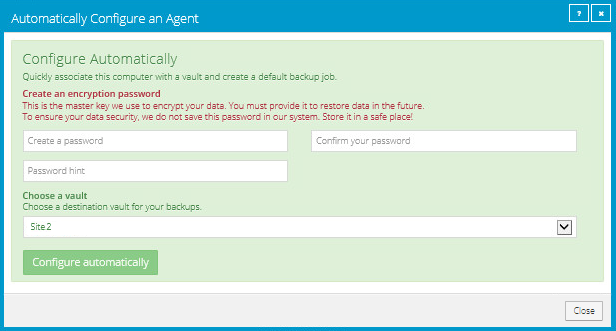
If you are setting up backups for a Windows or Linux computer, and your E3 is ready, the following Automatically Configure an Agent box appears. Go to Step 3.
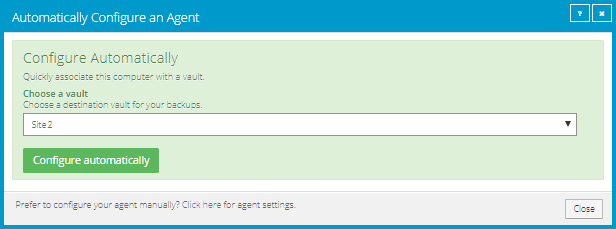
If you are setting up backups for a vSphere environment, and your E3 is ready, the following Automatically Configure an Agent box appears. Go to Step 4.
- If you are setting up backups for a Hyper-V environment, the Computers page shows the environment. You can create and schedule backup jobs manually. See Add and schedule a Hyper-V backup job.
-
To set up backups for a Windows or Linux computer, do the following:
-
Enter an encryption password in the Create a password and Confirm your password boxes.
IMPORTANT: Your encryption password is required for restoring your data, so be sure to store it somewhere safe. If you forget the password, you will not be able to restore your data. The password is not maintained anywhere else and cannot be recovered.
- In the Password hint box, enter a hint to help you remember the encryption password.
-
If you are a partner and are setting up backups for an E3 customer, choose the customer’s site from the Assign the computer to a site list.
The site list does not appear if you are signed in as a customer.

- If you have more than one E3 that is ready to accept backups, choose an E3 for receiving backups from the Choose a vault list.
-
Click Configure automatically.
Backups are then configured for the computer. Click Go To Agent to view the resulting “CloudServerBackup” backup job on the Computers page. See View computer and backup information.
-
-
To set up backups for a vSphere environment, do the following:
-
From the Choose a vault list, choose an E3 for receiving backups.
-
If you are a partner and are setting up backups for an E3 customer, choose the customer’s site from the Assign the computer to a site list.
The site list does not appear if you are signed in as a customer.
-
Click Configure automatically.
You can then create and schedule backup jobs. See Add a vSphere backup job.
-