Download and install agent software on a computer
You must install agent software on every Windows and Linux computer that you want to protect, and for each Hyper-V and vSphere environment that you want to protect. You can download agent software from Portal.
Note: To back up a Hyper-V or vSphere environment to E3 hardware, you must configure your hardware with a static IP address. For assistance, please contact Support.
To download and install agent software for a computer:
-
In a web browser, go to the Portal website.
If possible, use a web browser on the computer where you want to install the software. Alternatively, you can transfer downloaded software to the computer where you want to install it.
-
Sign in using your email address and password. For more information, see Sign in to Portal.
-
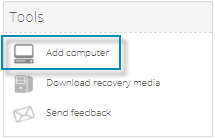
In the Tools section on the Dashboard, click Add computer.
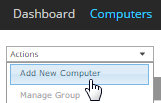
Note: You can also start this process on the Computers page, by clicking Add New Computer in the Actions list.
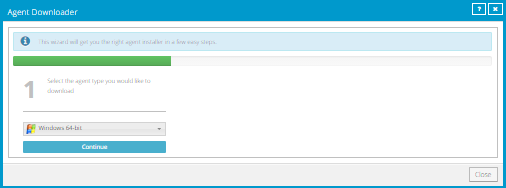
The Agent Downloader dialog box appears.
-
In the agent type list, select the appropriate agent software for the computer that you want to protect, and then click Continue. For example, to protect a Windows computer, select the Windows 64-bit agent.
For a Hyper-V environment, you must download two agent services: Hyper-V Agent Management and Hyper-V Agent Host.
-
Review information about the selected agent software, and then click Download.
-
When the software has finished downloading, install the agent software.
To install a Windows agent, double-click the downloaded installation kit and follow the prompts.
To install another agent type, see Install the Linux Agent, Add a vSphere environment, or Add a Hyper-V environment.