Install the Linux Agent
Beginning in version 9.20, the Linux Agent is only available as a 64-bit application; there is no 32-bit version of the agent. For supported platforms and system requirements, see the Linux Agent release notes. Release notes for current product versions are available here.
Note: The Linux Agent installation process configures Relax-and-Recover for use with the Agent. If Relax-and-Recover is installed on the server for another use, you can install a second copy of the tool in a different location to avoid overwriting your settings. When installing the Linux Agent, enter the Relax-and-Recover location for the Agent to use.
The Linux Agent installation kit is provided as a tar.gz file. Only unzip this file on the machine where it will be installed. Unzipping the file on another type of machine can cause unpredictable results.
To install the Linux Agent, you must have root privileges on the target system.
The installation program will check whether there is enough disk space for the installation. If the available disk space is insufficient, the installation directory will roll back to its original state.
To install the Linux Agent:
-
If you want to enable support for BMR backups, ensure that the correct version of the Relax-and-Recover tool is installed on the Linux system. See Install and verify Relax-and-Recover for Linux BMR backups.
-
Download the Linux Agent tar.gz installation package on the machine where you are installing the Agent.
-
Run the following command to extract files from the installation package:
tar -zxf packageName.tar.gzWhere packageName is the name of the Agent installation kit.
-
Run the following command to change to the Agent installation kit directory:
cd packageName
-
Run the following command to start the installation:
./install.sh
For available command options, see Install or upgrade the Linux Agent in silent mode.
-
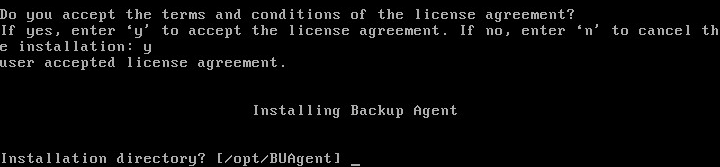
Press Enter to read the software license agreement. If you accept the agreement, enter Y.
-
At the Installation directory prompt, do one of the following:
- To accept the default installation directory (/opt/BUAgent), press Enter .
- Specify an installation directory and press Enter.
The directory, disk space required and available disk space are shown.

-
Enter Y to create the BUAgent directory.
-
At the Select language prompt, enter the language for Agent messages. The default language is English [en-US].
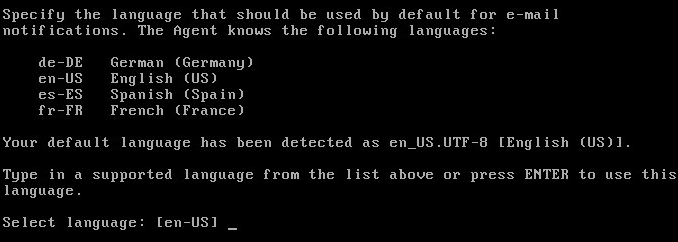
You are then prompted to choose the data encryption method.
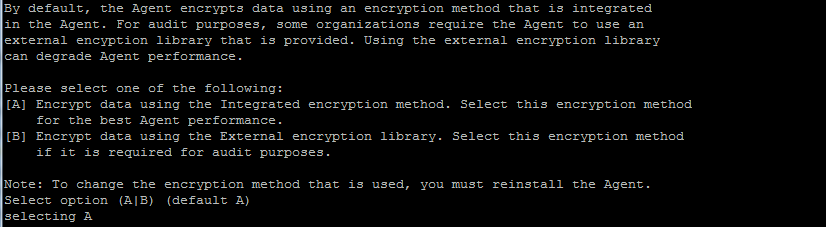
By default, the Agent encrypts data-at-rest using an encryption method that is integrated in the Agent. For audit purposes, some organizations require the Agent to use the external encryption library that is provided with the Agent. Using the external encryption library can degrade Agent performance.
IMPORTANT: The Agent is only supported with the external encryption library that is provided with the Agent. It has not been tested with other encryption libraries.
-
Do one of the following:
-
To use the integrated encryption method, enter A. This is the default value.
-
To use the external encryption library that is provided with the Agent, enter B.
-
-
At the Bare Metal Restore (BMR) backup support prompt, do one of the following:
Note: BMR backup support is only available with Linux Agent version 8.83 or later.
-
To enable BMR backups, enter Y. When prompted, enter the path to the Relax-and-Recover tool.
By default, the tool is installed in /usr/sbin/rear. The Relax-and-Recover tool must already be installed on the Linux server. See Install and verify Relax-and-Recover for Linux BMR backups.
-
If you do not want to enable BMR backups, enter N.
-
-
When prompted to register to Portal, enter Y.
-
At the Portal address prompt, enter the Portal host name or IPV4 address.
Note: We recommend specifying the Portal host name when you register an agent to Portal. If the Portal IP address changes in the future, DNS can handle the change and you will not have to manually register the agent to Portal again.
-
At the Portal connection port prompt, enter the Portal connection port. The default value is 8086.
-
At the Portal username prompt, enter the Portal username for registering the Agent.
-
At the Portal password prompt, enter the password for the Portal user specified in the previous step.
The installation proceeds. When complete, a message appears and the Agent starts.
The installation log (Install.log) is located in the installation directory.