Sign in to Portal
You must sign in to the Portal website to download agent software for computers and manage your backups and restores. If you do not know the Portal website address, please check the emails that you received.
You can sign in to Portal after you set your Portal password as described in E3 Data Protection Guide. When you sign in, you might be prompted to:
-
Verify your account. If two-factor verification is set up for your account, you are sometimes prompted to enter a verification code when you sign in to Portal. For example, you are prompted to enter a code every 30 days, and when you sign in from a new web browser. You can receive verification codes in text messages or automated voice calls to a phone number that you specified.
-
Set up two-factor account verification. To set up two-factor verification, you must enter a phone number for receiving codes in text messages or automated voice calls. You are then prompted to enter a verification code. You can also skip setting up this extra layer of account security.
To sign in to Portal:
-
In a web browser, go to the Portal website.
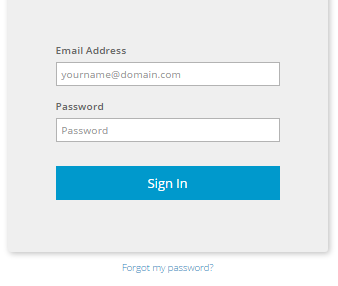
The Sign In page appears.
Note: If a cookie banner appears, you cannot sign in until you specify your cookie preferences. You can change your cookie preferences at any time by clicking the cookie preferences link at the bottom of a Portal page.
-
In the Email Address box, type your email address for signing in to Portal.
-
In the Password box, type your password.
If you have forgotten your password, you can reset it. See Reset your password.
-
Click Sign In.
If the Dashboard appears, you are now signed in and can start managing computers, backups and restores.
If the Now we need to verify your account page appears, you must enter an account verification code from a text message or automated voice call. See Verify your Portal account.
If the Set up two-factor account verification page appears, you can set up this extra layer of account security. See Set up or skip verification for your Portal account.