View computer and job status information
On the Computers page in Portal, you can view status information for computers and their jobs.
To view computer and job status information:
-
On the navigation bar, click Computers.
The Computers page shows registered computers.
The Availability column indicates whether each computer is online or offline. Online computers are in contact with Portal, while offline computers are not currently available. A computer can be offline if it is turned off, if the agent has been uninstalled from the system, or if the system has been lost.
The Status column shows the status of each computer. Possible statuses include:
-
 OK — Indicates that all jobs on the computer ran without errors or warnings. This status also appears if the computer has a new job that is less than 24 hours old that has not run yet.
 -
 OK with warnings — Indicates that one or more of the computer’s jobs completed with warnings. This status also appears if the computer has a new job that is more than 24 hours old that has not run yet.
 -
 Attention — Indicates that one or more of the computer’s jobs failed or completed with errors.
 -
 Unconfigured — Indicates that no jobs have been created for the computer.
 -
 Scheduled for deletion — Indicates that the computer is scheduled for deletion from Portal and from vaults. This status only appears in Portal instances where the data deletion feature is enabled.
 -
Certificate failure — Indicates that the agent is reporting a certificate change.
-
-
Find the computer for which you want to view status information, and click the row to expand its view.
-
View the Jobs tab.
If a backup or restore is running for a job, a Process Details symbol
 appears beside the job name, along with the number of processes that are running.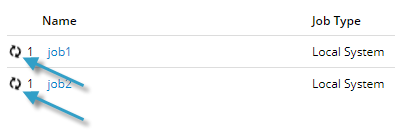
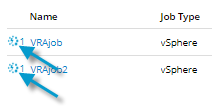
If a Rapid VM Restore is running for a vSphere Recovery Agent (VRA) job, a Rapid VM Restore symbol
 appears beside the job name, along with the number of Rapid VM Restores that are running.
If you click the Process Details
The Last Backup Status column shows the last backup status reported for each job. An agent reports a backup status to Portal each time it starts, skips or completes a backup. Possible statuses include:
-
Completed — Indicates that the last backup completed successfully, and a safeset was created.
-
Completed with warnings — Indicates that the last backup completed and a safeset was created, but problems occurred during the backup. For example, a warning could indicate that a file or volume that was selected in the backup job was not available for backup.
-
Deferred — Indicates that the last backup was deferred. A safeset was created, but not all data that was selected was backed up.
Deferring is used to prevent large backups from running at peak network times. When deferring is enabled, a backup job does not back up any new data after a specified amount of time.
Hyper-V VM backups can be deferred when they are run manually (ad hoc), but not when they are scheduled to run.
-
Skipped — Indicates that a backup was skipped. Backups are sometimes skipped if they are scheduled to run multiple times per day.
-
Never Run — Indicates that the backup job has never run.
-
Missed — Indicates that the job has not run for 7 days.
-
Completed with errors — Indicates that the backup completed and a safeset is available for restore, but problems occurred. Typically, this status indicates that not all of the data was backed up.
-
No Files backed up — Indicates that no files were backed up during the last backup attempt
-
 Failed — Indicates that the backup failed and no safeset was created.
 -
Cancelled — Indicates that the backup was cancelled.
-
Scheduled for Deletion — Indicates that the job is scheduled to be deleted from Portal and job data is scheduled to be deleted from all vaults on the date shown in the Date column. This backup status is only possible in Portal instances where the data deletion feature is enabled.
If Potential Threat appears after the status in the Last Backup Status column, a potential ransomware threat was detected while running the backup job. See Manage potential ransomware threats.
To view logs for a job, click the job status. For more information, see View a job’s process logs and safeset information.
-