View current process information for a job
In the Process Details dialog box, you can view information about running, queued and recently-completed processes for a job. Processes include backups, restores, and synchronizations, and is typically deleted within an hour after the process ends.
You can also view information about running and recent Rapid VM Restore and migration processes for a vSphere Recovery Agent (VRA) job. For more information, see Restore a vSphere VM within minutes using Rapid VM Restore.
To view current process information for a job:
-
While a backup, restore,
-
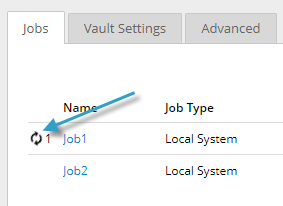
On the Computers page, on the Jobs tab, click the Process Details symbol


-
On the Monitor page, click the Process Details symbol

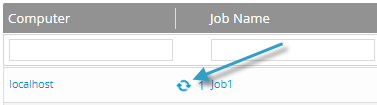
Note: For a Hyper-V restore, a Process Details symbol does not appear on the Monitor page. Instead, a line for the Hyper-V environment appears with "Restoring Virtual Machine" as the Last Backup Status. To view the environment's running processes, click the Hyper-V environment name, and then click its Virtual Machines tab on the Computers page.
If you clicked a Process Details symbol, the Process Details dialog box lists backup, restore and synchronization processes that are running, queued and recently completed for the job. Detailed information is shown for the process that is selected on the left side of the dialog box.
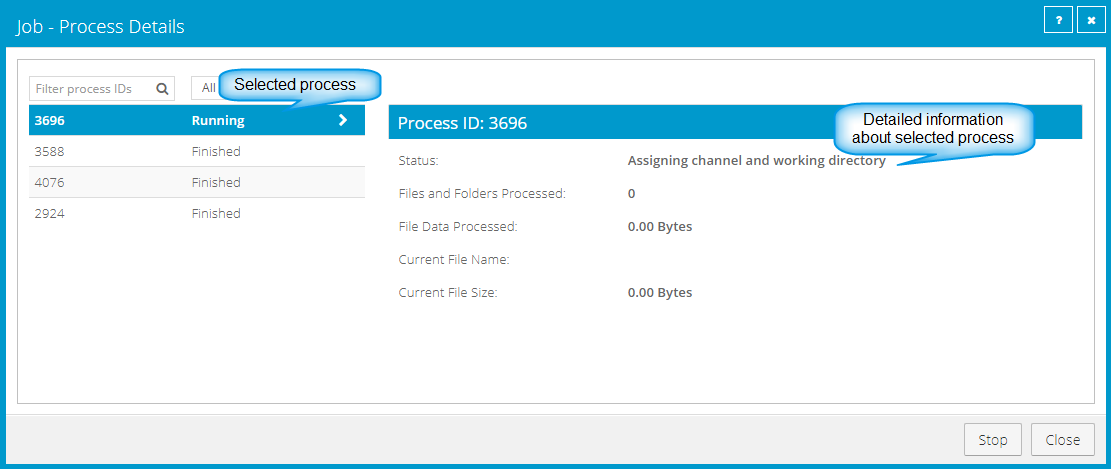
If you clicked a Rapid VM Restore symbol, the Process Details dialog box lists running and recent Rapid VM Restore and migration processes for the VRA job.
-
-
To view information about a different process
Detailed information is shown at the right side of the dialog box.
-
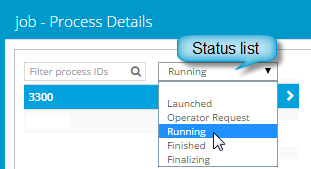
If the Process Details dialog box lists backup, restore and synchronization processes for the job, do one of the following in the status list to show only some processes:
-
To only show queued processes, click Launched.
-
To only show processes that are waiting for user action, click Operator Request.
-
To only show processes that are in progress, click Running.
-
To only show completed processes, click Finished.
-
To only show processes that are finishing, click Finalizing.
-