Set up email notifications for backups on multiple computers
By default in some Portal instances, Admin users receive emails when backups fail, or are canceled, deferred, missed, skipped or completed. Admin users can select backup statuses for which they want to receive email notifications.
These email notifications are sent for Windows systems with Agent version 8.0 or later, Linux systems with Agent version 8.10a or later, AIX systems with Agent version 9.00 or later and vSphere Recovery Agent 8.40 or later, instead of separately for each computer.
When email notifications are configured centrally in a Portal instance, additional notification email addresses can be specified for each child site.
Note: Email notifications selected in Admin users' profile settings are only sent in English. Email notifications for child site email addresses are supported in multiple languages.
In Portal instances where Admin users do not automatically receive email notifications, notifications must be configured separately for each computer. See Set up email notifications for backups on a computer.
To set up email notifications for backups on multiple computers:
-
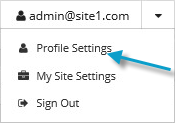
When signed in as an Admin user, click your email address at the top right of the Portal page.
The user menu appears.
-
Click Profile Settings.
Your user profile appears. If your profile includes an Email Notification Settings section with a list of backup events (e.g., Backup Canceled, Backup Completed, Backup Skipped), you can select events for which you want to receive emails.
If Email Notification Settings do not appear, you must set up notifications separately for each computer. See Set up email notifications for backups on a computer.
If an Encryption Password Changed option appears, you can choose to receive email notifications when encryption passwords change in your site.
-
In the Email Notification Settings list, select any of the following events for which you want to receive emails:
-
Backup Cancelled
-
Backup Completed
-
Backup Completed with Errors
-
Backup Completed with Warnings
-
Backup Deferred
-
Backup Failed
-
Backup Missed
-
Backup Skipped
Note: Backups are sometimes skipped if they are scheduled to run hourly or multiple times per day.
-
-
Click Update notifications.