Sign in
Before you can manage backups and restores, you must sign in to the Portal website. If you do not know the Portal website address or do not have a Portal user name and password, please contact your service provider. If you have forgotten your password, you can reset it and choose a new password. See Reset your password.
When you sign in to Portal, your user type determines which information and functionality you can access.
Note: In some Portal instances, users sign in with credentials that they also use to sign in to other systems. See Sign in using single sign-on credentials.
To sign in:
-
In a web browser, go to the Portal website.
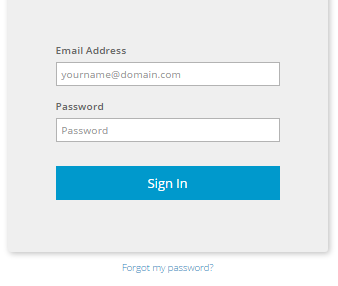
The Sign In page appears.
Note: If a cookie banner appears, you cannot sign in until you specify your cookie preferences. You can change your cookie preferences at any time by clicking the cookie preferences link at the bottom of a Portal page.
Note: If an Authentication Required dialog box appears, you must sign in using single sign-on credentials from your organization. See Sign in using single sign-on credentials.
-
In the Email Address box, type your email address for signing in to Portal.
-
In the Password box, type your password.
If you have forgotten your password, you can reset it. See Reset your password.
-
Click Sign In.
If the Dashboard appears, you are now signed in and can start managing computers, backups and restores.
If you are prompted to enter an account verification code from your authenticator app or phone, you must verify your account. See Verify your account.
If the Change Password page appears, you must change your password. See Change your password when required at sign-in.
If you are prompted to set up an authenticator app or SMS/Voice for receiving codes, you can set up account verification. See Set up account verification at sign-in.