Sign in using single sign-on credentials
In some Portal instances, users sign in with user names and passwords that are also used to sign in to other systems. These single sign-on credentials are managed and authenticated by an external identity server (e.g., Active Directory).
Admin and regular users who sign in using single sign-on credentials must change their Agent Registration passwords in Portal before they can register agents. See Change your Agent Registration password.
If you sign in using single-sign on credentials, we recommend closing all web browser windows after you sign out. See Sign out.
Note: If you sign in to Portal using credentials that you also use to sign in to other systems, you cannot reset your password in Portal.
To sign in using single sign-on credentials:
-
In a web browser, navigate to the Portal website.
If an Authentication Required dialog box appears, you can enter single sign-on credentials from your organization. Continue to Step 2.
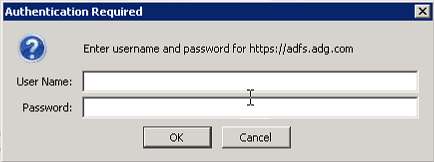
If a Sign In page appears, you must sign in using credentials that are managed in Portal. See Sign in.
-
In the User name box, type your user name.
You can enter your user name in any of the following formats: username@domain.com, username, or domain\username
-
In the Password box, type your password.
-
Click OK.
Note: If the sign-in is not successful, you might need to change your single-sign on password outside of Portal.