Recover jobs and settings from an offline Hyper-V Agent
You can recover jobs and settings from an offline Hyper-V Agent:
-
During a disaster recovery.
-
When moving to a new Hyper-V environment.
-
When a Hyper-V agent is not connecting to Portal because of a Portal certificate change. If a Hyper-V agent is not connecting to Portal and a The Agent Management SSL Certificate does not match what was expected message appears in the Host log, please contact your service provider or Portal administrator to determine whether you need to recover the agent's jobs and settings. If this is required, you can back up Hyper-V agent logs in the <ManagementServiceInstallFolder>\Data folder, uninstall the Hyper-V agent that is not connecting to Portal, and then recover the agent's jobs and settings.
You can install a new Hyper-V agent and recover the following information and settings from an offline Hyper-V agent:
-
Backup jobs
-
Vault settings
-
Hyper-V environment address and last backup status
-
Advanced settings, including the Agent description, retention types, notifications, and bandwidth throttling
You can then enter credentials, run backup jobs from the original agent, and restore VMs that were protected by the agent.
You cannot recover passwords for a Hyper-V Agent. You must manually enter Hyper-V environment, vault, and encryption passwords after recovering Hyper-V Agent jobs and settings. You might also need to enter passwords for application-consistent backups and an SMTP password for notifications.
IMPORTANT: You must enter these passwords when recovering a Hyper-V Agent even though asterisks appear in the Portal password fields.
To recover jobs and settings from an offline Hyper-V Agent:
-
the newly-installed Hyper-V Agent must be the same version or a later version than the offline agent. For example, you can install a version 9.40 agent and recover jobs and settings from an offline version 9.00 agent.
- the new Hyper-V environment must be the same version or a later version than the environment protected by the offline agent. For example, you can recover jobs and settings from an offline Hyper-V agent in a Windows Server 2016 environment to an agent in a Windows Server 2019 environment.
The generation of a VM is retained when it is backed up and restored. A protected Generation 1 VM is restored as a Generation 1 VM. A protected Generation 2 VM is restored as a Generation 2 VM.
When you recover jobs and settings from an offline Hyper-V Agent, all scheduled backup jobs for the Agent are disabled. If Hyper-V VMs remain in the protected environment, or have been restored after a disaster, you can re-enable all scheduled jobs for the environment. See Disable or enable all scheduled backup jobs.
IMPORTANT: Hyper-V Agent settings are saved in the Portal database. To ensure that a Hyper-V environment can be fully restored if the Portal is also lost, the Portal database must be backed up. For more information, see the Portal Installation and Configuration Guide.
To recover jobs and settings from an offline Hyper-V Agent:
-
Install the Hyper-V Agent Management service on a supported Windows server. See Install the Hyper-V Agent Management service.
On the Register Hyper-V Agent Management with Portal page of the installer, register the Management service to the Portal where the original Hyper-V Agent was registered. Register the Management service to the Portal using the user who installed the original Hyper-V Agent, or using an Admin user in the original user’s site.
-
Log in to Portal as the user who installed the original Hyper-V Agent, or as an Admin user in the original user’s site.
-
In Portal, on the navigation bar, click Computers.
The Computers page shows registered computers.
-
Find the computer where the new Hyper-V Agent Management service is installed, and expand its view by clicking its row.
Before you recover jobs and settings from the offline Hyper-V agent, the name of the computer where the Management service is installed appears on the Computers page.
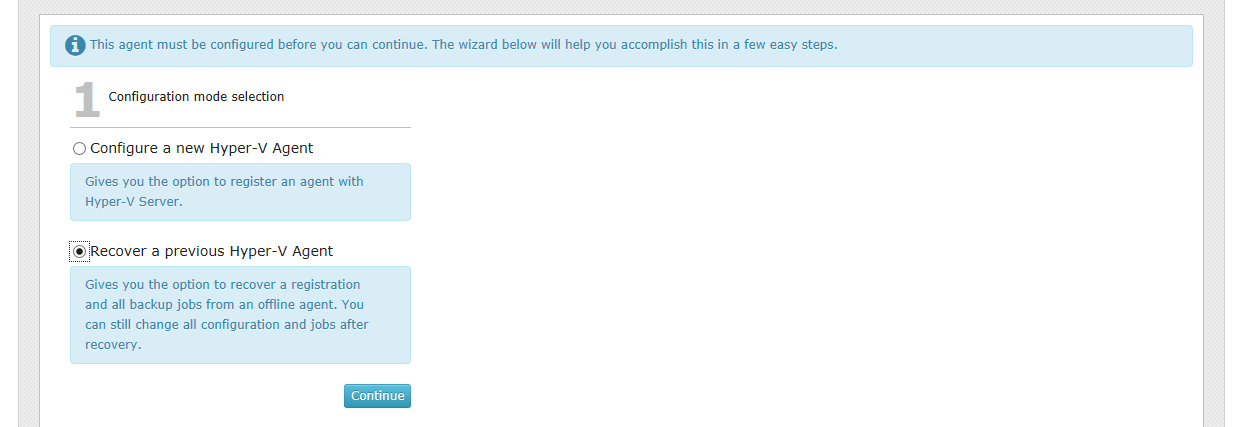
The Configuration mode selection section appears.
Note: The Recover a previous Hyper-V Agent option only appears if there is an offline Hyper-V Agent in the user’s site. If the offline Hyper-V Agent was deleted from Portal but its data was not deleted from the vault, you can undelete the Hyper-V Agent. See Undelete Hyper-V environments.
-
Select Recover a previous Hyper-V Agent, and then click Continue.
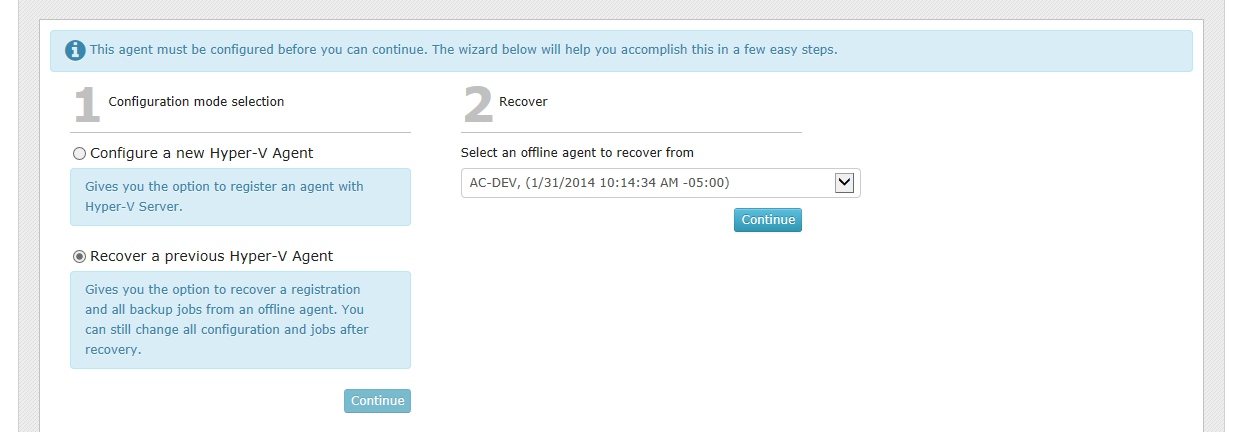
The Recover section appears. The Select an offline agent to recover from list shows the names of standalone Hyper-V host names and clusters where the Management service is offline, and shows the last date and time when the Management service connected to Portal.
Note: The date and time shown in the Select an offline agent to recover from list could reflect the date and time when the Management service was installed or the server was restarted. The date and time in this list does not reflect the date and time of the last backup.
-
From the Select an offline agent to recover from list, choose the protected environment from which you want to recover jobs and settings. If you are sure that this is the correct offline Agent, click Continue.
Note: Do not click Continue unless the correct offline Agent is selected. The offline Agent’s settings and jobs are downloaded immediately after you click Continue.
The system downloads the offline agent’s jobs and settings. If the offline agent was protecting a Hyper-V cluster, the name of the original protected cluster now appears on the Computers page instead of the Management service computer name. You cannot change the name to the name of the current cluster.
The Success section lists the passwords that you need to enter: Hyper-V environment, vault registrations, job encryption, application-consistent backups, and Email notifications.
-
Click Continue.
-
On the Cluster Credentials tab, do one of the following:
-
To continue protecting the same Hyper-V environment, enter the password for the specified user.
-
To provide credentials for a new Hyper-V environment so you can restore VMs to the new environment, enter Hyper-V environment information in the Address and Domain boxes. In the Username box, type the domain administrator account that is used to authenticate with the Hyper-V cluster or standalone host. In the Password box, type the password for the specified user. For more information, see Change credentials or the network address for accessing Hyper-V.
To determine whether the credentials are valid, click Verify Information. If the credentials are valid, click Okay in the confirmation message box.
-
-
Click Save. In the confirmation message box, click Okay.
-
On the Vault Settings tab, enter the password for each vault connection. See Add vault settings.
-
On the Jobs tab, edit each job and do the following:
-
In the Encryption Password and Confirm Password boxes, enter the job's data encryption password.
-
If application-consistent backups are enabled in the job, do one or both of the following:
-
To enter credentials forVMs in the job, enter an admin user's username and password in the Guest VM Credentials area.
The specified user must have admin access to VMs in the backup job. You can enter the username as username or domain\username.
-
To enter credentials for a specific VM in the job, click the arrow at the right side of the VM name in the Protected by this job box, and enter an admin user's username and password.
The specified user must have admin access to the VM. You can enter the username as username or domain\username.
If you enter credentials for a specific VM in the job, the Agent will not attempt to connect to the VM using the Guest VM Credentials.
IMPORTANT: If you do not enter credentials for VMs in the backup job, backups will be crash-consistent. Credentials are required for all application-consistent backups in Hyper-V environments— with or without log truncation.
-
Click Save. In the confirmation message box, click Continue.
-
-
If required, on the Advanced tab, on the Notifications tab, enter the SMTP password. See Set up email notifications for backups on a computer.
-
Click Save. In the confirmation message box, click Okay.
-
Reinstall the Host service on each Hyper-V cluster host or standalone node. See Install the Hyper-V Agent Host service.
Note: If you reinstall the Management service in a Hyper-V environment for any reason, you must also reinstall each Host service.
-
If the protected Hyper-V VMs exist in the environment (i.e., the VMs were restored after a disaster or remained intact when the Hyper-V Agent was lost), you can re-enable all scheduled backup jobs for the Hyper-V environment. See Disable or enable all scheduled backup jobs.