Undelete Hyper-V environments
By default, the Computers page in Portal shows computers that are registered to Portal and are online, offline, or online and need to be rebooted.
You can choose a different view on the Computers page to see protected Hyper-V environments that have been deleted from Portal. You can also “undelete” deleted Hyper-V environments so you can recover data from the environments. See Recover jobs and settings from an offline Hyper-V Agent.
To undelete a Hyper-V environment:
-
On the navigation bar, click Computers. The Computers page shows registered computers.
-
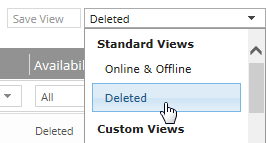
Click the views list at the top of the page.
-
In the views list, click the Deleted view.
The Computers page shows Hyper-V environments that have been deleted from Portal.
-
Select the check box for each Hyper-V environment that you want to undelete.
-
In the confirmation dialog box, click Yes.
-
In the Success dialog box, click Okay.