Delete a computer and delete computer data from vaults
In a Portal instance where the data deletion feature is enabled, Admin users can delete computers and request that data for the computers be deleted from all vaults. After the data is deleted from the vaults, you will not be billed for it.
Note: Beginning in Portal 8.90, Admin users can submit requests to delete data from vaults for online or offline computers. In previous Portal versions, requests to delete data from vaults could only be submitted for online computers.
To protect against inadvertently deleting the wrong data, the data deletion is scheduled for 72 hours after the request is made, an email notification is sent to Admin users in the site and to Super users, and the status of the computer in Portal changes to Scheduled for deletion. During the waiting period, the computer's jobs continue to run as scheduled.
During the 72-hour waiting period before a computer data deletion request is sent to vaults, Admin users in the site can cancel the scheduled computer data deletion. See Cancel a scheduled computer data deletion.
If a scheduled computer data deletion is not canceled during the 72-hour waiting period, the deletion request is sent to vaults and job data is automatically deleted from associated vaults. If data for a computer cannot be deleted for some reason, an email notification is sent to a vault administrator. The vault administrator can then manually delete the data. After the computer data is deleted from vaults, the computer is deleted from Portal.
Note: Because the data is available for restore during the 72-hour waiting period, it will still be included in customer invoices. Usage reduction for invoicing purposes does not occur until the data is deleted.
Note: When a computer is deleted from Portal, the agent is not removed from the computer where it is installed. To remove the agent from the computer, you must manually uninstall it.
Note: If you delete a Hyper-V environment using this method, backup data is deleted for all VMs in the backup job. To delete one VM from a Hyper-V backup job, see Delete a Hyper-V VM's backups from vaults and Portal.
WARNING: Computer data deletion is permanent. After the data is deleted from vaults, it cannot be recovered or restored.
To delete a computer and delete computer data from vaults:
-
When signed in as an Admin user, click Computers on the navigation bar.
The Computers page shows registered computers.
-
Select the check box for each computer that you want to delete.
-
In the Actions list, click Delete Selected Computer(s).
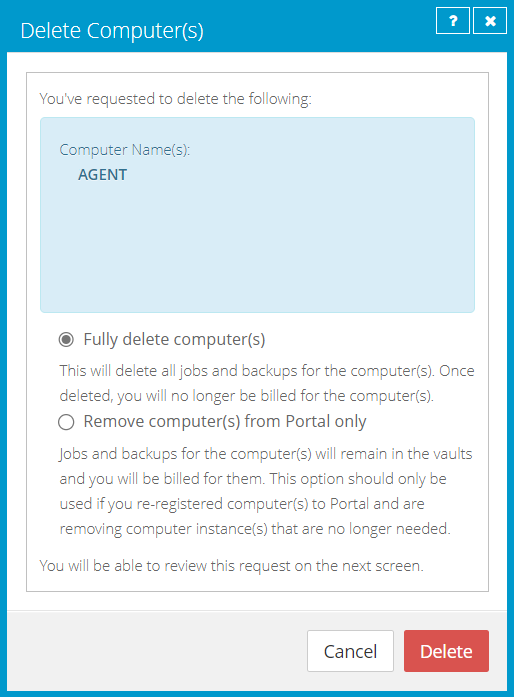
A Delete Computer(s) dialog box appears if the data deletion feature is enabled in your Portal instance.
Note: If the Delete Computer(s) dialog box does not appear or the Fully delete computer(s) option is not available, you cannot request that data for the selected computers be deleted from vaults. You can only delete the selected computers from Portal. See Delete a computer without deleting data from vaults.
-
Select Fully delete computer(s), and then click Delete.
IMPORTANT: To permanently delete unnecessary data from vaults and reduce billing, you must select Fully delete computer(s). If you select Remove computer(s) from Portal only, data will not be removed from vaults and your invoice will not be affected.
WARNING: Computer data deletion is permanent. After the data is deleted from vaults, it cannot be recovered or restored.
-
In the confirmation dialog box, type CONFIRM.
Note: You must type CONFIRM in capital letters.
-
Click Confirm Deletion.
WARNING: Computer data deletion is permanent. After the data is deleted from vaults, it cannot be recovered or restored.
A Computer(s) Deleted dialog box states that the computer(s) and associated data in your vault(s) are scheduled to be deleted.
-
Click Close.
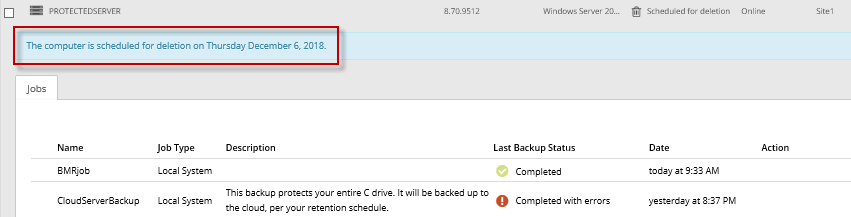
The Status column shows Scheduled for deletion for the computer(s). If you expand the computer, a message indicates when the computer is scheduled to be deleted.
During the 72-hour period, you can cancel the deletion request. Because the data is available for restore during this period, it will still be included in customer invoices. Usage reduction for invoicing purposes does not occur until the data is deleted.
You cannot add, edit, run, schedule or delete jobs for a computer that is scheduled for deletion. Existing backup jobs continue to run as scheduled until the computer is deleted.