Add the first backup job for a Windows computer
Beginning with Portal 8.89 and Windows Agent 8.90a, backups can be configured automatically on Windows servers based on job templates. When agent auto-configuration is set up in a Portal site, you do not have to manually select a vault account and create a backup job and schedule for each Windows server. For more information, see
In Portal sites where agent auto-configuration is not available, Portal can create the first backup job for a Windows computer when you click a "Configure Automatically" button. The resulting job cannot be customized using a job template. For a computer where the Windows Agent is installed with the Image Plug-in, Portal automatically creates an Image BMR backup job that protects all volumes on the computer. For a computer where the Windows Agent is installed without the Image Plug-in, Portal automatically creates a job that backs up the C drive. Automatically-created jobs are scheduled to run every night. A valid vault profile must be available before a backup job can be created automatically.
Note: Some files are filtered out automatically from a backup job. For example, files specified by the FilesNotToBackup and FilesNotToSnapshot registry keys might not be backed up, and the job folder is not backed up.
After a job is created, you can change the job settings, if desired. For example, you can specify different folders to back up or change the schedule for running the job.
To add the first backup job for a Windows computer:
-
On the navigation bar, click Computers.
The Computers page shows registered computers.
-
Find a Windows computer, and expand its view by clicking the computer row.
If a Configure Manually button appears, a backup job has not been created for the computer. Other messages or buttons might also appear, as described in the following step.
-
Do one of the following:
-
If a "queued for automatic configuration" message appears for the computer, wait for the agent to be configured. Portal will attempt to configure backups on the server based on job templates in the next three minutes. See Determine whether an agent has been configured automatically.
-
To create a backup job manually, click Configure Manually. See Add a Windows Local System backup job.
-
If a Configure Automatically button appears, Portal can automatically create a backup job for the computer.
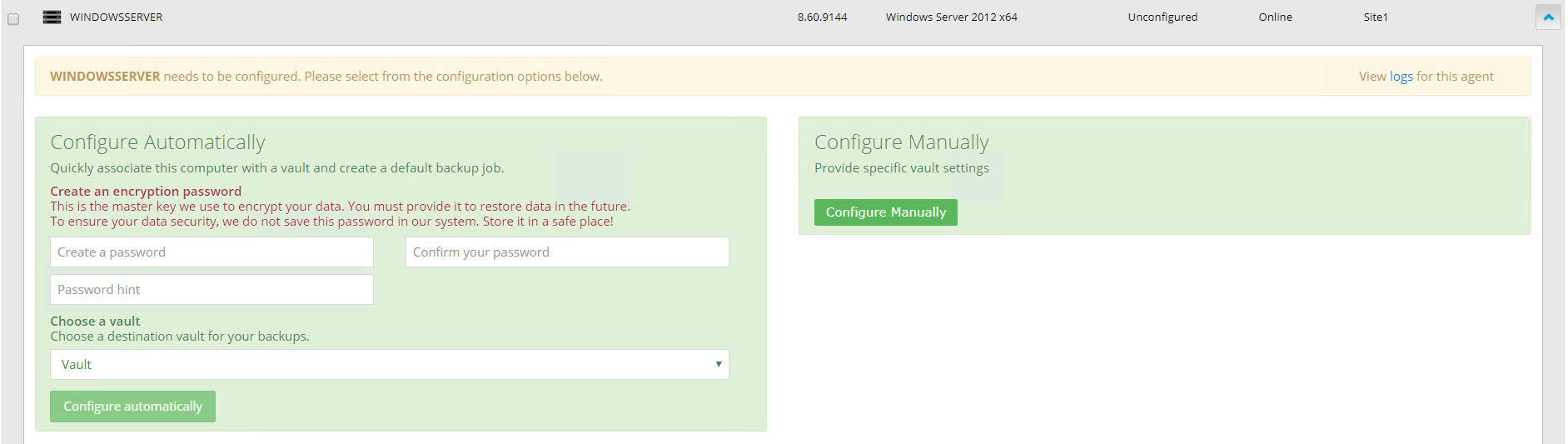
Do the following:
-
In the Create a password and Confirm your password boxes, enter an encryption password.
Important: Your encryption password is required for restoring your data, so be sure to store it somewhere safe. If you forget the password, you will not be able to restore your data. The password is not maintained anywhere else and cannot be recovered.
-
In the Password hint box, enter a hint to help you remember the encryption password.
-
If the Assign the computer to a site list appears, choose a site for the computer.
The site list appears if you are signed in as an Admin user in a parent site that has child sites, and the computer is currently in the parent site. The list includes the parent site if it has a vault profile, and all child sites. If the parent site name is in the list, it appears in bold followed by the word "Parent" in brackets.

-
If more than one vault is available, choose a vault from the Choose a vault list.
-
Click Configure automatically.
If the configuration succeeds, a backup job appears for the computer.
If the automatic job creation fails, do the following:
-
Click Configure Manually.
-
On the Vault Settings tab, click Add Vault.
-
In the Vault Settings dialog box, enter vault information and credentials.
-
Create a backup job manually. See Add a Windows Local System backup job.
-
-
-