View skipped rates and backup status histories on the Computers page
To prevent schedule overloads, backups that are scheduled to run multiple times per day are skipped in some cases. Users can obtain skipped backup information through email notifications, on the Computers page, and in the Daily Status report. See Skipped backups.
In some Portal instances, users can view skipped backup rates for jobs and computers on the Computers page, and view and export a job's backup status history for the 48 hours before the last backup attempt. For more information, see View skipped rates and backup status histories.
To view skipped rates and backup status histories on the Computers page:
-
Click Computers on the navigation bar.
A value appears in the Skipped column for any computer where at least one job has a skipped rate. If more than one job on a computer has a skipped rate, the highest skipped rate appears in the Skipped column.
Note: If the Skipped column does not appear, skipped rates and 48-hour backup status histories are not available in your Portal instance.

-
Find a computer with a value in the Skipped column, and click the computer row to expand its view.
On the Jobs tab, a value appears in the Skipped Rate column for any job where a backup was skipped in the 48 hours before the last backup attempt, and the last backup attempt occurred in the last seven days.

-
To see which backups were skipped in the 48 hours before the last backup attempt for a job, click the job's Skipped Rate value.
The 48-Hour Status History for the job shows the date, time and status (e.g., skipped, in-progress, completed or failed) of each backup attempt.
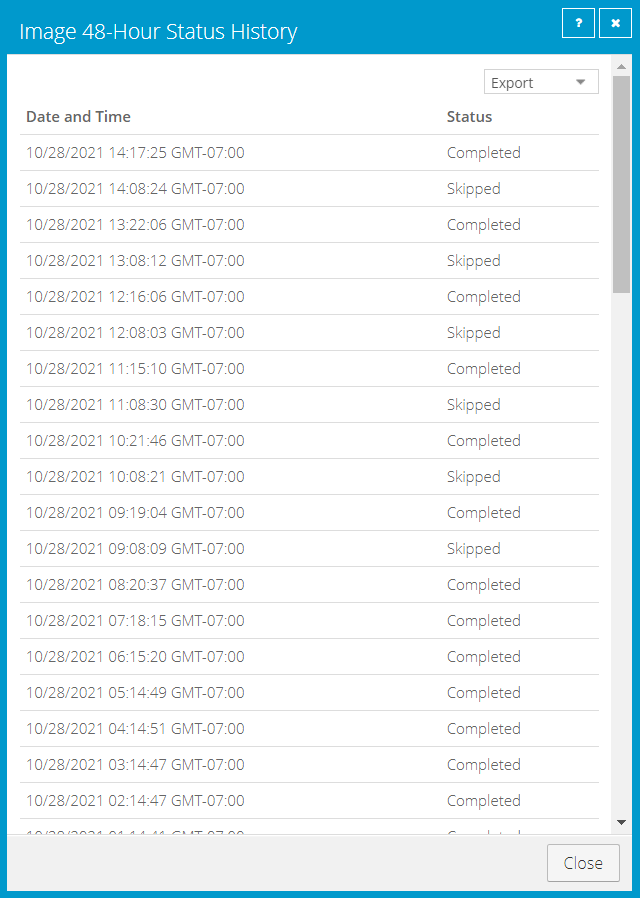
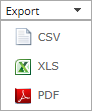
If you want to export the status history, click the Export box. In the list that appears, click one of the following formats for the exported data:
-
CSV (comma-separated values)
-
XLS (Microsoft Excel)
-
PDF (Adobe Acrobat)
The status history data file is downloaded to your computer in the specified format.
Note: We recommend turning off macros in Microsoft Excel when using Portal, particularly if you export reports in XLS or CSV format and open these reports in Excel.
-