View the Aggregated Usage Summary Report
In some Portal instances, Admin users and Support users can view the Aggregated Usage Summary Report. This report shows the total amount of data backed up for a site in a specified time period: both the original size (size of the data backed up before it was compressed during a backup) and the compressed size (size of the data backed up after it was compressed during a backup) in gigabytes. The report includes a tree structure where you can navigate to see usage data for each child site, if any, and each computer. The report also shows the Billing ID for each computer.
This report is only available in Portal instances that obtain data from billing systems. To associate billing data with a Portal site, the customer short name from the vault must be added for the Portal site.
To view the Aggregated Usage Summary Report:
-
When signed in as an Admin user or Support user, click Reports on the navigation bar.
The Reports page lists default and customized report views.
If you are signed in as a Support user, and the Support Dashboard appears on the Reports page, you need to select a site.
-
In the Usage Summary Report section, click Aggregated Usage Summary Report.
Note: If this report name does not appear, the Aggregated Usage Summary Report is not available in your Portal instance.
The report shows the total amount of data backed up from all computers in the site (original and compressed size) in the most recent billing period. The site name appears in the Name column. If a site is a parent site, a parent site icon (
 ) appears beside the site name.
 -
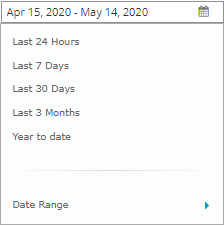
To change the report date range, click the date range box. In the list that appears, do one of the following:
-
Click a pre-defined date range: Last 24 Hours, Last 7 Days, Last 30 Days, Last 3 Months, or Year to date.
-
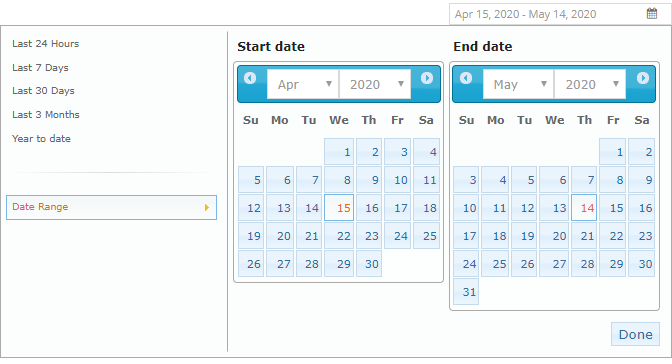
Click Date Range, and specify a custom date range. In the Start date calendar, click the first day of records to include in the report. In the End date calendar, click the last day of records to include in the report. Click Done.
-
-
Click the site name in the Name column to expand the tree view.
-
If the site has child sites, the report shows each site and the total amount of data backed up from computers in each site.
To view the amount of data backed up from each computer in a site, click the site name in the Name column to expand the tree view.
If an information icon
 appears beside a name in the Name column, the name is either:
 -
A customer short name from the vault. A customer short name appears when the short name is not associated with a Portal site.
- "Unidentified". This category appears when one or more computers in the billing data are not associated with a Portal site or customer short name. For assistance with computers in this category, please contact Support.
For more information, point to the information icon beside the name to view a tooltip.
If the tree view for a site is fully expanded, the report shows the amount of data backed up from each computer in the site, and shows each computer's billing ID.
-
-
When viewing the report, you can do any of the following:
-
Export the report data in comma-separated (.csv), Microsoft Excel (.xls), or Adobe Acrobat (.pdf) format. See Export a report.
-
Email the report data to one or more recipients. Data can be emailed in comma-separated values (.csv), Microsoft Excel (.xls), or Adobe Acrobat (.pdf). See Email a report.
-
Schedule the customized report to be emailed to one or more recipients. Data can be emailed in comma-separated (.csv), Microsoft Excel (.xls), or Adobe Acrobat (.pdf). See Schedule an emailed report.
-