Enable agent auto-configuration in child sites
Parent site Admin users can enable agent auto-configuration in child sites that they manage. When agent auto-configuration is enabled in a child site, new Windows agents that are installed with default encryption passwords and registered to the site are configured as specified by a selected job template and vault profile.
Before agent auto-configuration can be enabled in a child site:
-
At least one job template must be created in Portal. See Create job templates.
-
At least one vault profile must be available in the site. See Add a vault profile for a site.
To enable agent auto-configuration in a child site:
-
When signed in to Portal as an Admin user who can manage child sites, click Sites on the navigation bar.
-
Find the child site for which you want to enable agent auto-configuration. Open the site record by clicking its row.
If you cannot open the site record, the Allow admins to manage child sites check box might not be selected in the parent site.
-
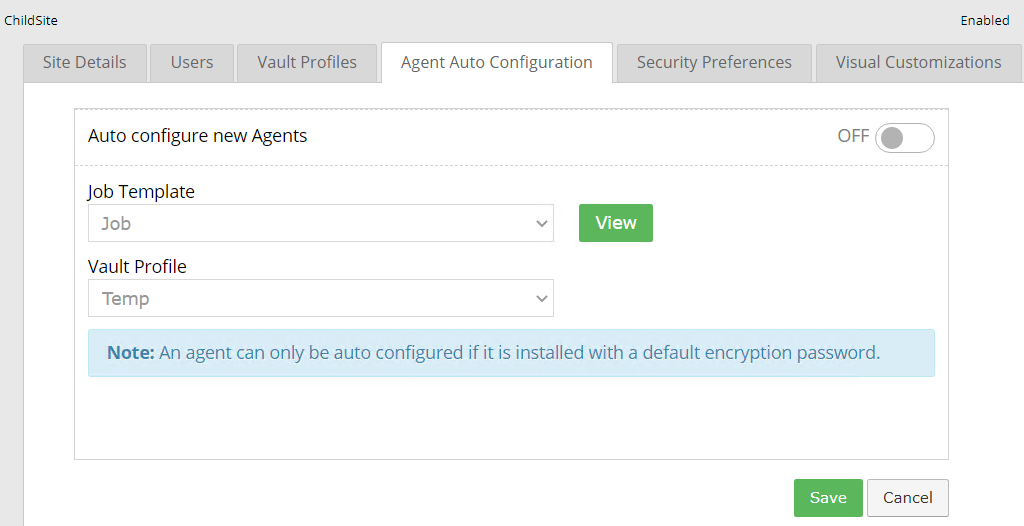
Click the Agent Auto Configuration tab for the site.
-
On the Agent Auto Configuration tab, turn on the Auto configure new agents toggle.
-
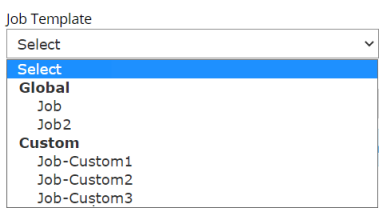
In the Job Template list, select a template for automatically-created backup jobs.
The Job Template list includes any global templates (created by a Super user) and custom templates (created by an Admin user for the parent site).
-
To view the selected template, click the View or Edit button.
The View button appears if the selected template is a global template that was created by a Super user. The Edit button appears if the selected template is a custom template that was created by a parent site Admin user.
To customize a template, see Create and edit custom job templates.
-
In the Vault Profile list, select the vault profile for automatically creating backup jobs in the site.
-
Click Save.