Restore data to a replacement computer
If you are replacing a system and want to migrate all data to a new computer (e.g., at the end of a lease) or in a disaster recovery situation, you can re-register the new computer with the vault as the old computer, and restore data from the old computer’s backups. If the old computer backed up data to multiple vaults, you can use Portal version 8.50 or later to re-register the new computer to multiple vaults.
After you re-register a computer with a vault, you must:
-
Edit each existing backup job and enter the encryption password for the backup job.
-
Synchronize the jobs before they run successfully. See Synchronize a job.
If you want to restore data to another computer without replacing the existing computer, you can restore data from another computer. See Restore data from another computer.
Note: A different procedure is used to recover a protected Hyper-V environment. See Recover jobs and settings from an offline Hyper-V Agent.
To restore data to a replacement computer:
-
Download and install an agent on the new or rebuilt computer.
-
On the navigation bar, click Computers.
A grid lists available computers.
-
Find the replacement computer to which you want to restore the data, and expand its view by clicking the computer row.
-
Click Configure Manually.
-
Click the Vault Settings tab.
-
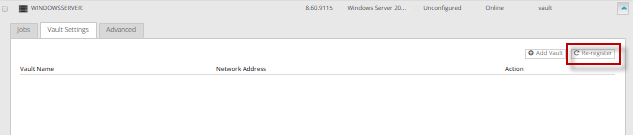
-
In the Vault Settings dialog box, in the Vault Profile list, select the vault where the backup from the original computer was stored.
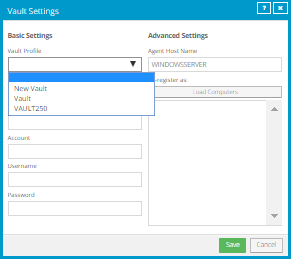
-
Click Load Computers.
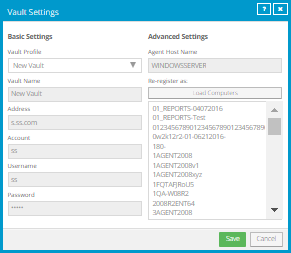
-
In the list of computers, click the name of the computer where the data was backed up. Click Save.
-
If the original computer backed up data to another vault, repeat Step 6 to Step 9 to download job information from the other vault.
-
After job information is downloaded, click the Jobs tab.
You must enter any passwords required for the job, including the encryption password.
For a vSphere Recovery Agent, you must also enter vCenter or ESXi host information on the vSphere Settings tab.
-
Find a job whose data you want to restore, and click Restore in the job’s Select Action menu.
The remaining steps are the same as the steps for regular restores.
Note: If you are restoring data from a Windows Image or Local System job, "Potential Threat" appears in the Restore dialog box for any safesets where a potential threat was detected on the original system. If you are restoring data from a vSphere job, "Potential Threat" does not appear for any safesets in the Restore dialog box even if a potential threat was detected during a backup in the original vSphere environment.
IMPORTANT: After you re-register a computer with the vault, you must enter the encryption passwords for the computer’s backup jobs and synchronize the jobs before they run successfully. See Synchronize a job.