Migrate a vSphere VM restored using Rapid VM Restore to permanent storage
When you first use Rapid VM Restore to restore a vSphere VM, the VM is dependent on the VRA and vault, and is intended for temporary use.
To restore the VM permanently, use Portal to migrate the VM to permanent storage. If the VM is powered on, you can continue to use the VM during the migration. After migration, the VM is independent from the VRA and vault, and its disks are restored with their original formats (e.g., thin- or thick- provisioned).
IMPORTANT: On an ESXi host that is not managed by vCenter Server, Rapid VM Restore can be used to verify that VMs were backed up correctly, but cannot be used to restore VMs permanently. An ESXi server that is not part of a vCenter does not have the capabilities required to migrate VMs to permanent storage.
If you cancel a migration before a VM is fully migrated to the permanent datastore, the restored VM remains in the vSphere environment and continues running using the Rapid VM Restore process. If you do not cancel the Rapid VM Restore process, you can try to migrate the VM again.
When migrating a VM that was restored using Rapid VM Restore to permanent storage, we recommend the following:
-
Before running a migration, back up the VM that was restored using Rapid VM Restore. See Best practice: Back up vSphere VMs restored using Rapid VM Restore. You cannot back up a VM while it is being migrated, or migrate a VM while it is being backed up.
-
Use Portal to migrate a VM to permanent storage rather than using the vSphere Client or Web Client. When migrating a VM to permanent storage, Portal ensures that all disks are migrated and converted to their original formats. If you try to migrate a VM to permanent storage without using Portal but do not migrate all disks and convert them to their original formats, you will not be able to migrate the VM using Portal. The VM might be deleted when you cancel the Rapid VM Restore process.
-
Do not perform more than six migrations at one time, even if the migrations are distributed across hosts in the vSphere environment.
-
During a migration, do not power off the VM from within the guest operating system or you might be locked out of the VM until the migration is complete. While a VM is being migrated, you cannot power on, power off, or suspend the VM using the vSphere client.
To migrate a VM restored using Rapid VM Restore to permanent storage:
-
Check that the VM is in the state that you want during the migration: powered on, powered off, or suspended.
-
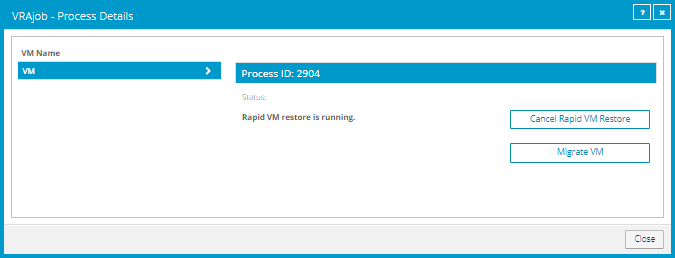
If the Process Details dialog box is not open for the VM’s Rapid VM Restore process, find the VM’s VRA backup job on the Computers page or Monitor page. Click the Rapid VM Restore symbol that appears beside the VRA job name:

The Process Details dialog box lists Rapid VM Restores that are running from the selected backup job.
-
If more than one VM appears in the VM Name list, select the VM that you want to migrate.
-
Click Migrate VM.
IMPORTANT: The Migrate VM button is not available if you are restoring the VM to a single ESXi host that is not managed by vCenter Server. You cannot permanently restore a VM using Rapid VM Restore if the VRA is protecting a single ESXi host that is not managed by vCenter Server.
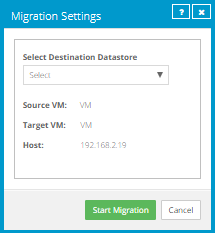
The Migration Settings dialog box appears.
-
In the Select Destination Datastore list, select the permanent datastore for the VM.
The list includes datastores that are accessible from the host selected for the Rapid VM Restore, but does not include the temporary datastore selected for the Rapid VM Restore.
-
Click Start Migration.
The following Status message appears in the Process Details dialog box: VM migration is in progress.
If you click Cancel Migration while the migration is in progress, the restored VM remains in the vCenter and is still dependent on the VRA and vault. You can start the migration again, if desired.
When the VM is migrated to the permanent datastore, the following Status message appears in the Process Details dialog box: VM has been migrated. At this point, the VM is permanently restored and is no longer dependent on the VRA and vault. The Rapid VM Restore process ends and the Rapid VM Restore symbol
no longer appears beside the job name on the Computers or Monitor page.