Upgrade agents on specific computers
Admin users can start the agent upgrade process on specific eligible Windows computers in their sites.
To upgrade agents on specific computers:
-
When signed in as an Admin user, click Computers on the navigation bar.
The Computers page shows registered computers. Icons in the Version column show each computer’s agent upgrade status. You can use a filter in the Version column to view computers with a particular upgrade status.
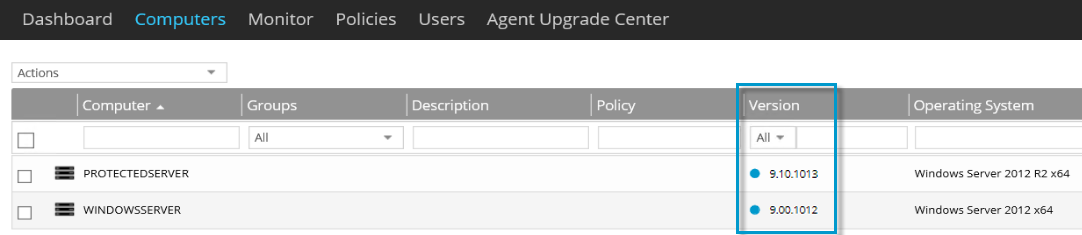
You can upgrade agents on computers with the following agent upgrade statuses:
-
 Upgrade available — Indicates that the agent can be upgraded by an agent installer in Portal. Beginning in Portal 9.30, this status only appears for a computer if its operating system is supported with the new agent version.
 -
 Pending upgrade — Indicates that the agent can be upgraded by an agent installer in Portal and automatic upgrades have started for agents in the computer’s site. You can start the upgrade or wait for it to begin automatically.
Other possible agent upgrade statuses are:
-
 Up to date — Indicates that the agent version is up-to-date and does not need to be upgraded by an installer in Portal.
 -
 Upgrade in progress — Indicates that an agent upgrade is in progress on the computer.
 -
 Upgrade error — Indicates that your action is required because an agent upgrade error occurred on the computer. You can check the agent logs for more information.
 -
 Reboot required — Indicates that the agent has been upgraded successfully but the computer needs to be restarted.
Note: An agent upgrade status icon does not appear for agents that are installed on unsupported operating systems (e.g., Windows Server 2012 R2 or Windows Server 2012).
Note: An agent upgrade status icon does not appear for Windows Agent versions earlier than 8.70. These agents must be manually upgraded to version 8.70 or later before they can be upgraded automatically.
-
-
Select the check box for each eligible computer where you want to upgrade the agent.
-
In the Actions list, click Upgrade Agent on Selected Computer(s). This action is only available if each selected computer has the Upgrade available status. You cannot select this action for agents on unsupported operating systems.
A Success dialog box indicates that the agent upgrade process has started.
-
Click Okay.
The agent upgrade status icon for each agent that is being upgraded is
(Upgrade in Progress). After an agent is upgraded, the agent status icon changes to (Up to date). If an agent requires a reboot after an upgrade, the agent’s upgrade status is (Reboot required) and a notification email is sent to Super users and the site’s Admin users.