Policy filters for backup jobs
When Admin users create or edit policies, they can specify files and folders to include in or exclude from backups using the Inclusions/Exclusions tab.
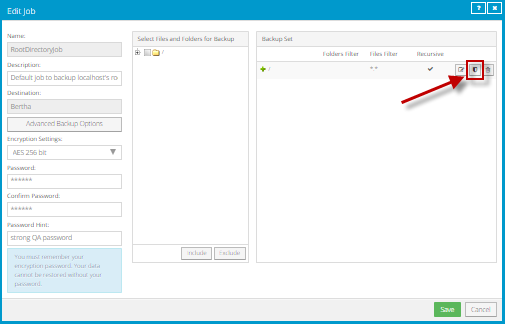
File and folder filters are not applied automatically in backup jobs on computers where the policy is assigned. Instead, when creating or editing a Local System, UNC or NFS job, a user can click the Apply Policy Filters button  in the Backup Set box to apply filters from the policy.
Include subdirectories
Specifies whether subdirectories are included in backups. Select this check box to back up subdirectories of directories that are selected in a backup job.
Filters to include
Specifies names of files and subdirectories to back up. Users can apply these filters to a folder in a backup job so that only files and subdirectories with the specified names are backed up. For example, you can specify that only files with the “.docx” extension in a selected folder should be backed up.
In the Files field, enter the names of files to include in a backup. Separate multiple file names with commas, and use asterisks (*) as wildcard characters. For example, to only back up files in a selected folder that have the “.docx” extension or have file names that start with “tax”, enter the following filter: *.docx, tax*
In the Folders field, enter the names of subdirectories to include in a backup. Separate multiple folder names with commas, and use asterisks (*) as wildcard characters. For example, to only back up subdirectories in a selected folder that start with the letter “a” or end with “2013”, enter the following filter: a*, *2013
Note: Asterisks (*) are the only supported wildcards in filter fields.
Filters to exclude
Specifies names of files and folders to exclude from a backup. Users can apply these filters to a folder that is excluded from a backup job so that only files and subdirectories with the specified names are excluded from the backup. For example, you can specify that files with the “.jpg” extension in a selected folder should not be backed up.
In the Files field, enter the names of files to exclude from a backup. Separate multiple file names with commas, and use asterisks (*) as wildcard characters. For example, to exclude files in a selected folder that have the “.jpg” extension or have file names that end with “2001”, enter the following filter: *.jpg, *2001
In the Folders field, enter the names of subdirectories to exclude from a backup. Separate multiple folder names with commas, and use asterisks (*) as wildcard characters. For example, to exclude subdirectories from a backup if their names end with “-old” or start with “2001”, enter the following filter: *-old, 2001*
Note: Asterisks (*) are the only supported wildcards in filter fields.