View vault profiles for a site
When adding vault settings for a computer, Admin users and regular users can manually enter vault information, or select a vault profile with vault information and credentials.
Super users can view vault profiles for sites. Admin users can view vault profiles for their sites, and for any child sites. Beginning in Portal 8.89, Super users and Admin users can view vault account passwords.
To view vault profiles for a site:
-
Do one of the following:
-
When signed in as an Admin user, click the user menu, and then click My Site Settings in the menu.
-
When signed in as a Super user, or as an Admin user who can manage child sites, click Sites on the navigation bar. In the grid, find the site for which you want to view vault profiles. Open the site by clicking its row. Click the Vault Profiles tab.
The Vault Profiles tab shows information about each vault profile.
-
-
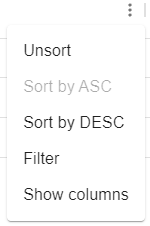
To sort records by values in a column, point to the column heading, click the Menu button ⋮, and then click Sort by ASC or Sort by DESC. If Sort by ASC or Sort by DESC is unavailable, records are already sorted by this value.
-
To stop sorting records by values in a column, point to the column heading, click the Menu button ⋮, and then click Unsort. If Unsort is unavailable, records are not sorted by this column.
-
To filter records by values in a column, point to the column heading, click the Menu button ⋮, and then click Filter. In the Operator list and Value box, specify how to filter records.
-
To change which columns appear, point to a column heading, click the Menu button ⋮, and then click Show columns. In the list of columns, turn on columns that you want to show and turn off columns that you want to hide.
Note: E3 appliance information appears in the Appliance Hardware Id and Appliance State (e.g., Online) columns.
-
To view information for a specific vault profile, click Edit in its Select Action menu.
The Vault Settings dialog box shows vault profile information, including the network address, account and username.
-
If an eye icon
 appears in the Password field, click the icon to view the vault account password. After viewing the password, you can click the eye icon with a slash
  to hide the vault account password.