Create a parent site
Super users can create parent sites in Portal. A parent site represents an organization that is independent from other parent organizations.
Super users can also specify whether child sites can be added to a parent site, and whether Admin users can create and manage the parent site’s child sites.
To create a parent site:
-
When signed in as a Super user, click Sites on the navigation bar.
The Sites page shows existing sites.
-
Above the grid, click Create New Site.
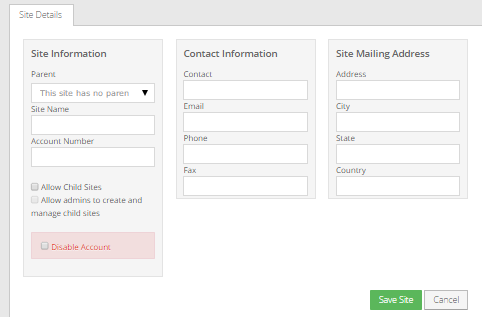
The Site Details tab opens.
-
In the Parent list, click This site has no parent.
-
In the Site Name box, enter a name for the new site.
The site name cannot exceed 255 characters and cannot include the following special characters:
= ^ + ` | % ;Beginning in Portal 8.90, a parent site can have the same name as a child site. A parent site cannot have the same name as another parent site.
-
To allow the parent site to have child sites, select the Allow Child Sites check box.
-
To allow parent site Admin users to create and manage child sites, select the Allow admins to manage child sites check box.
-
Enter other site information on the Site Details tab.
-
Click Save Site.
The Site Details tab closes, and the new parent site appears in the grid.