Add a Hyper-V backup job
After a Hyper-V environment is added in Portal, you can create a backup job that specifies which virtual machines (VMs) to back up, and where to save the backup data.
You must add vault settings and Hyper-V environment information before you can add a backup job. See Configure a new Hyper-V Agent.
You can start to create a Hyper-V backup job by selecting VMs to include in the job. If you select a VM that is already included in another job, the VM will not be added to the new job. You can also start to create a Hyper-V backup job without selecting VMs on the Virtual Machines tab.
Beginning with version 8.84 of the Hyper-V Agent, you can create application-consistent backups of Microsoft SQL Server, Exchange, SharePoint and Active Directory on Windows VMs in Hyper-V environments. Application-consistent backups minimize the amount of work needed to restore applications from backups. You can also specify whether application transaction logs should be truncated during application-consistent backups. For more information, see Application-consistent backups on Hyper-V VMs.
To add a Hyper-V backup job:
-
On the navigation bar, click Computers.
The Computers page shows registered computers and environments.
-
Click the Hyper-V environment row.

-
Do one of the following:
-
To start creating the job without selecting VMs to include in the job:
-
Click the Jobs tab.
-
In the Select Job Task menu, click Create Hyper-V Job.
The Create New Job dialog box appears. The Unprotected box shows VMs that are not included in a backup job.
-
-
To start creating the job by selecting VMs to include in the job:
-
Click the Virtual Machines tab.
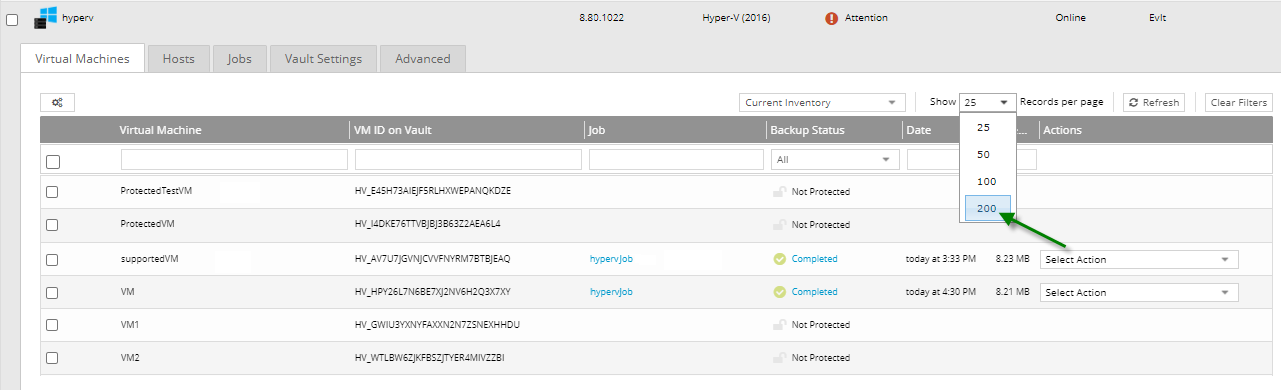
The Virtual Machines tab lists VMs in the Hyper-V environment. The Jobs column is blank for VMs that are not included in a backup job. By default, the Virtual Machines tab shows 25 VMs at a time.
-
If the VMs that you want to include in the job are not listed on the tab, click the Show <number of> records per page list, and click the number of VMs to show.
A maximum of 200 VMs can appear on the Virtual Machines tab at the same time, and you can only select VMs that appear on the Virtual Machines tab. However, you can add more VMs to the job later in this procedure.
-
Do one of the following:
-
Select the check box for each VM that you want to include in the backup job.
-
Select the check box at the top left of the list to select all VMs on the page.
If you select a VM that is included in another job, it will not be added to the new job.
-
-
Click Create Hyper-V Job.

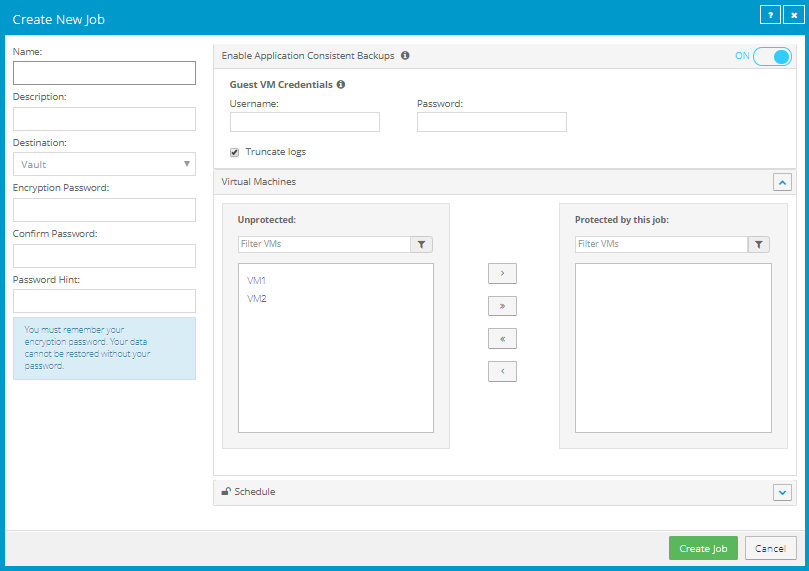
The Create New Job dialog box appears. The Unprotected box shows VMs that are not included in a backup job. If you selected VMs on the Virtual Machines tab, the Protected by this job box shows the selected VMs.
-
-
-
In the Create New Job dialog box, specify the following information:
-
In the Name box, type a name for the backup job.
-
In the Description box, type a description for the backup job.
-
In the Destination list, select the vault where you want to save the backup data.
-
In the Encryption Password and Confirm Password boxes, enter a data encryption password. You can also enter a password hint in the Password Hint box.
IMPORTANT: You must enter the encryption password to recover your data. If you forget the password, you lose access to your data. The password is not maintained anywhere else and cannot be recovered.
Note: Hyper-V backup data is encrypted using the AES 256 encryption method.
-
-
In the Enable Application Consistent Backups box, do one of the following:
Note: Application Consistent backups are available for Hyper-V Agent version 8.84 or later in Portal version 8.87 or later.
-
To perform crash-consistent backups of VMs in the backup job, turn off the Enable Application Consistent Backups toggle.
-
To perform application-consistent backups of SQL Server, Exchange, SharePoint, and Active Directory on any VMs in the backup job, do the following:
-
Turn on the Enable Application Consistent Backups toggle.
-
To enter credentials for VMs in the job, enter an admin user's username and password in the Guest VM Credentials area.
The specified user must have admin access to VMs in the backup job. You can enter the username as username or domain\username.
You can also enter credentials for specific VMs in the job. See Step 7. If you enter credentials for a specific VM in the job, the Agent will not attempt to connect to the VM using the Guest VM Credentials.
IMPORTANT: If you do not enter credentials for VMs in a job where application-consistent backups are enabled, backups will be crash-consistent. Credentials are required for all application-consistent backups in Hyper-V environments— with or without log truncation.
-
Do one of the following:
-
To preserve application transaction logs on VMs in the job, clear Truncate logs.
- To truncate application logs on VMs in the job, select Truncate logs.
Note: If you also back up databases with another tool (e.g., native SQL Server backup). use only one tool for truncating logs.
-
-
-
-
Do one or more of the following until the Protected by this job box shows all VMs that you want to include in the job:
-
To find one or more VMs in the Unprotected or Protected by this job box, enter characters from the VM names in the associated Filter VMs box.
-
To add all VMs in the Unprotected box to the backup job, click Protect all.

-
To add some VMs in the Unprotected box to the backup job, select the VMs in the Unprotected box, and then click Protect selected.

To select multiple VMs in the list, press CTRL and click the VM names. To select multiple consecutive VMs in the list, press Shift and then click the first and last VM that you want to select, or drag the mouse across the VMs.
-
To remove all VMs in the Protected by this job box from the backup job, click Unprotect all.

-
To remove some VMs in the Protected by this job box from the backup job, select the VMs in the Protected by this job box, and then click Unprotect selected.

To select multiple VMs in the list, click each VM name.
Ensure that each VM that you want to include in the backup job appears in the Protected by this job box.
-
-
If application-consistent backups are enabled in the backup job and you want to enter credentials for a specific VM in the job, click the arrow at the right side of the VM name in the Protected by this job box, and enter an admin user's username and password for the VM.
The specified user must have admin access to the VM. You can enter the username as username or domain\username.
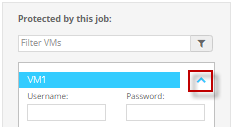
Note: If you enter credentials for a specific VM in the job, the agent will not attempt to connect to the VM using the Guest VM Credentials.
-
To schedule the backup job to run, click Schedule. In the Schedule box that appears, create one or more schedules. See Add or edit a schedule for a Hyper-V backup job.
-
Click Create Job.