Set up account verification in your profile
If account verification is available in your Portal instance, you can view, set up, or change your account verification method in your profile settings. When account verification is set up, you can be prompted to enter a verification code when you sign in to Portal or reset your password.
Depending on your Portal instance, you might be able to set up one of the following account verification methods:
-
An authenticator app that generates time‑based one‑time passcodes (TOTPs), such as Microsoft Authenticator or Google Authenticator. See Set up account verification with an authenticator app.
-
A phone number for receiving codes in text messages and automated voice calls. See Set up account verification with a phone number.
Set up account verification with an authenticator app
To set up account verification with an authenticator app:
-
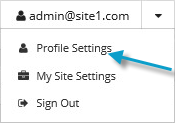
At the top of the Portal page, click the email address that you used to sign in to Portal.
A user menu appears.
-
Click Profile Settings.
Your profile appears. In the Two-Factor Account Verification section of your profile, you can view, set up, or change your account verification method. If a Two-Factor Account Verification section does not appear, account verification is not available in your Portal instance.
-
Do one of the following:
-
Click the Setup Authenticator App (TOTP) button.
-
Click the Setup button. In the Choose an authentication method box, click Authenticator App (TOTP), and then click Continue.
-
To change from a phone number to an authenticator app, click the Switch to Authenticator App button.
Note: If one of these buttons is not available, you cannot set up account verification with an authenticator app.
The Setup Authenticator App (TOTP) box displays a QR code and a code that you can enter manually in your app.
-
-
Scan the QR code with your authenticator app, or add your Portal account in the authenticator app manually using the code provided.
Your Portal account is added in the authenticator app.
-
In the Setup Authenticator App (TOTP) box, enter a code for your Portal account from your authenticator app.
-
Click Complete Setup.
-
Click Close.
Set up account verification with a phone number
To set up account verification with a phone number:
-
At the top of the Portal page, click the email address that you used to sign in to Portal.
A user menu appears.
-
Click Profile Settings.
Your profile appears. In the Two-Factor Account Verification section of your profile, you can view, set up, or change your account verification method. If a Two-Factor Account Verification section does not appear, account verification is not available in your Portal instance.
-
Click one of the following buttons, if they appear:
-
Click the Setup phone button or Switch to SMS or Voice button.
-
Click the Setup button. In the Choose an authentication method box, click SMS/Voice, and then click Continue.
-
To change your phone number for receiving verification codes, click Change phone.
Note: If one of these buttons is not available, you cannot set up account verification with a phone number.
-
-
In the Choose a phone number box, specify a phone number for receiving verification codes. Do one of the following:
- To receive a verification code in a text message, select Send me a text message.
- To receive a verification code in an automated voice call, select Call me. Click Send code.
The We’ve sent a code to your phone box appears.
-
Check your phone for a text message or automated voice call with an account verification code. Enter the code in the box, and then click Submit.
If a You’ve set up two-factor account verification message appears, click Close.
If a message states that the code you entered is incorrect, enter the code again, and click Submit. You can also click Resend my code to receive a new account verification code, or click change my phone number to enter a new phone number for receiving codes.